Lunar Paper
English

Platform

01 / Collaboration

Collaboration

The platform includes multi-user collaboration throughout most of its applications, allowing live editing, presence, cursor tracking and notifications.
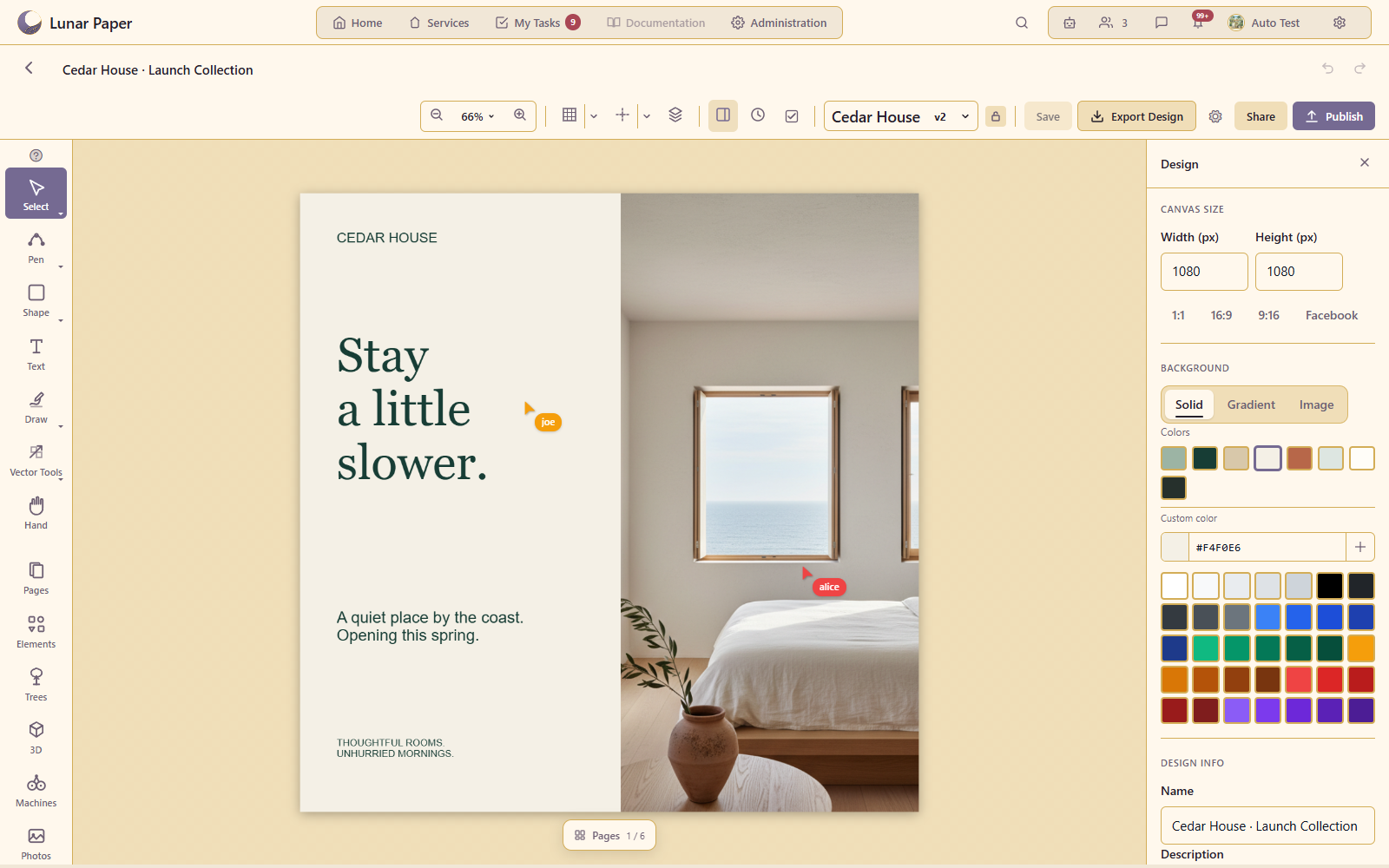
Collaboration: Joe and Alice’s cursors in Design Studio.
Live cursors. Joe and Alice’s cursors in Design Studio.Open full size ↗
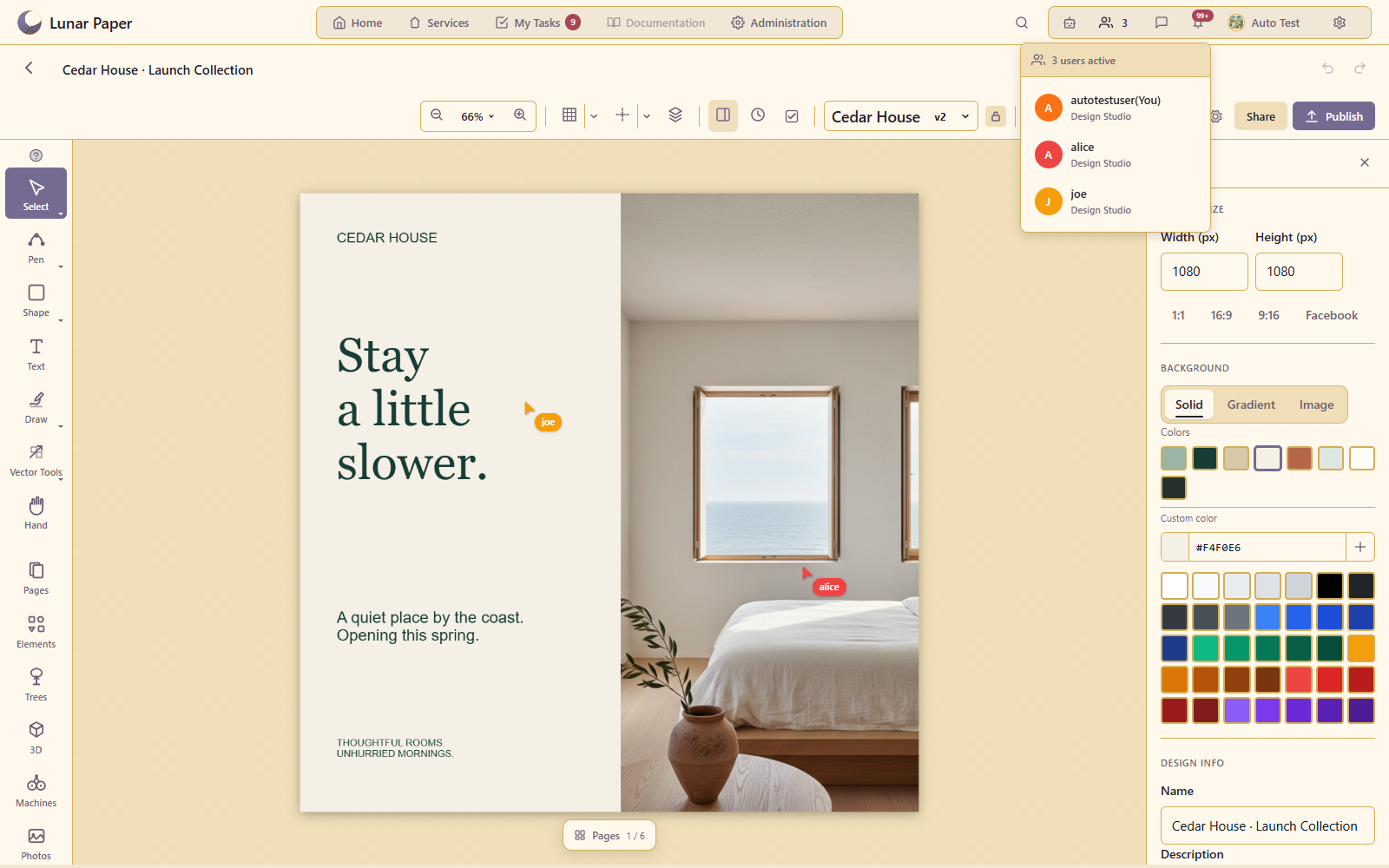
Collaboration: Active participants in the same design.
Participants. Active participants in the same design.Open full size ↗
1 / 22 / 2

Commenting

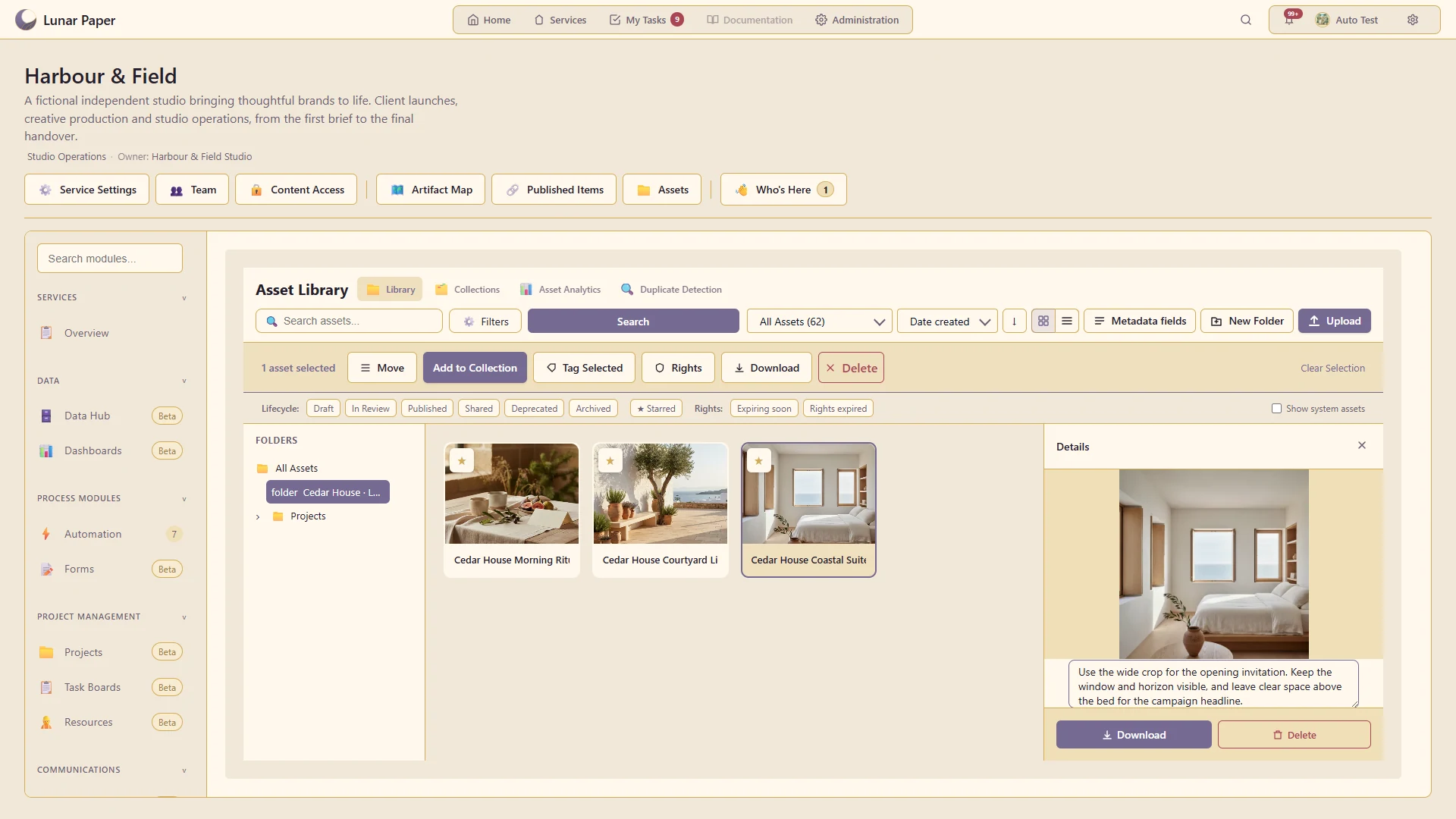
Comments are available across supported applications, with threads, replies, mentions and reactions. Comments can be attached to content such as boards, documents and assets.
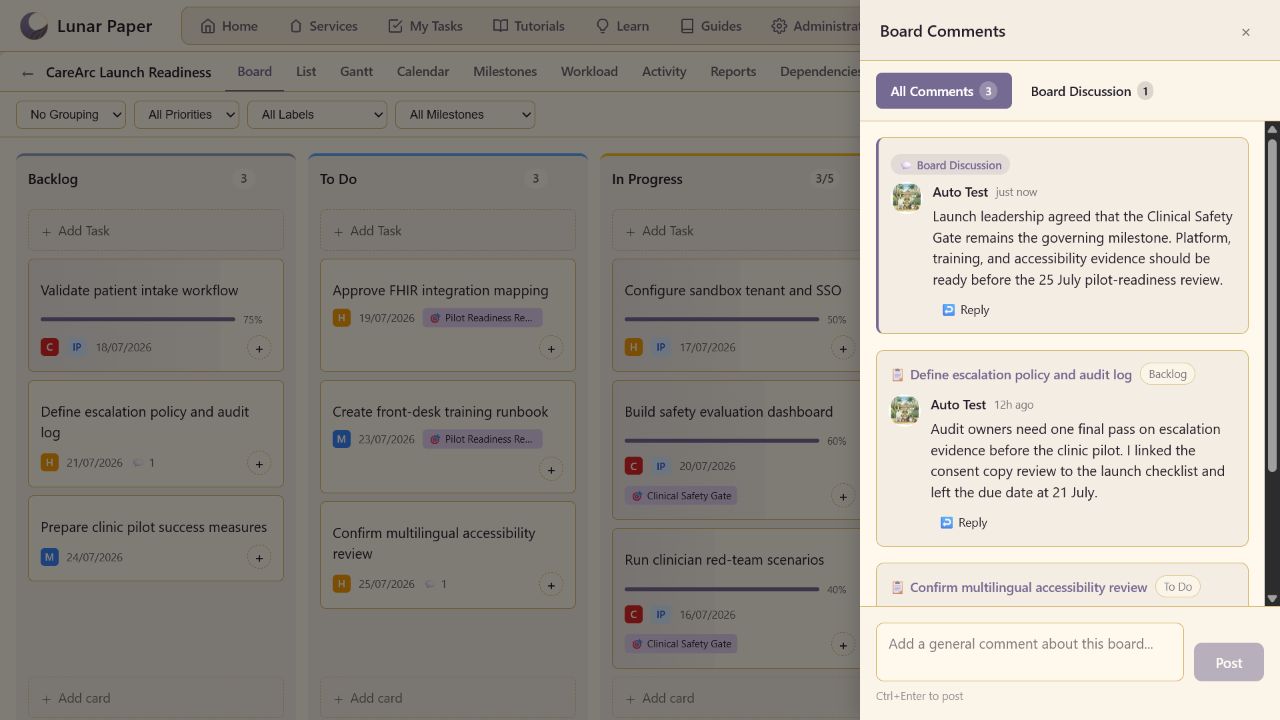
Commenting: Board and task discussions in the comments panel.
Board comments. Board and task discussions in the comments panel.Open full size ↗
Commenting: Comments attached to an asset.
Asset comments. Comments attached to an asset.Open full size ↗
1 / 22 / 2

Notifications

The platform includes in-app notifications for comment mentions, tasks and approvals, plus scheduled project digests through your configured email service.
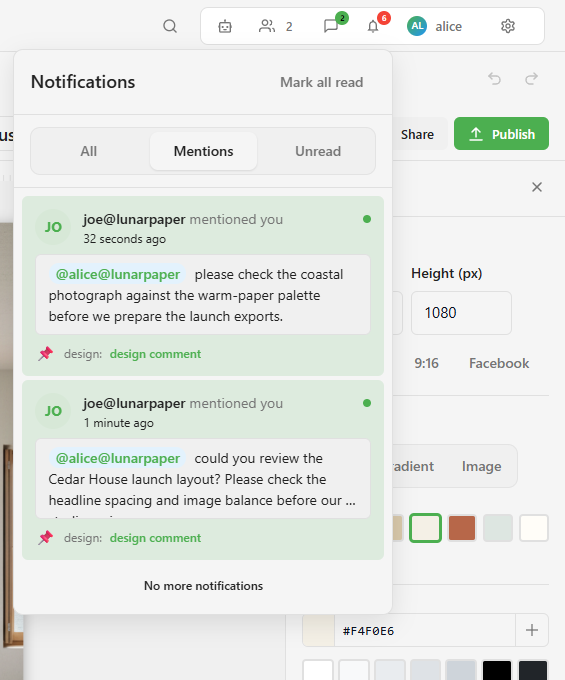
Alice’s unread comment mentions from Joe.
Comment mentions. Alice’s unread comment mentions from Joe.Open full size ↗

Tasks and approvals

Keep every action waiting on you in one place. Review requests, complete form-based tasks, make approval decisions and delegate work across services, with deadlines, context and notifications kept together.
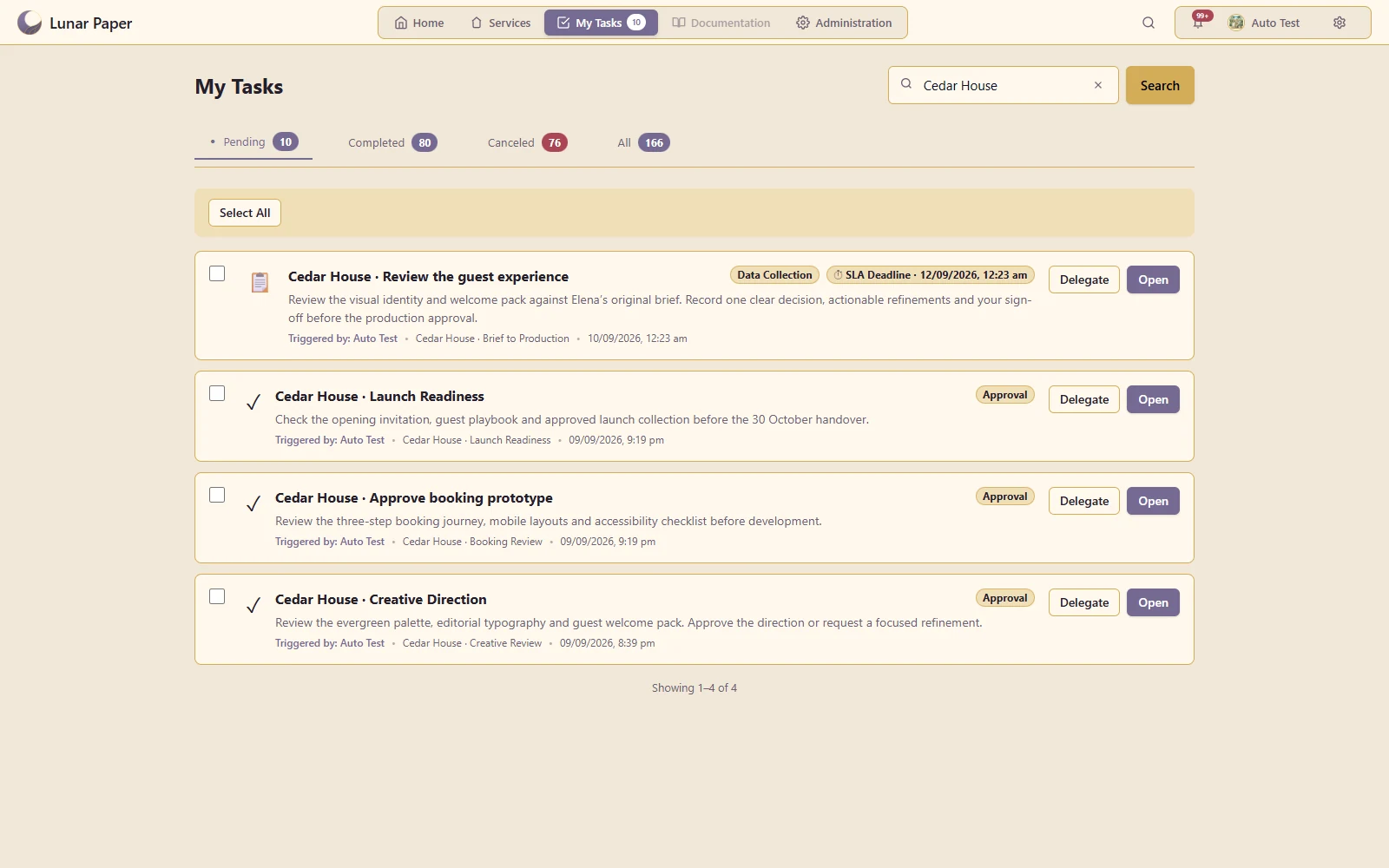
A focused queue for assigned work, team tasks and approval decisions across services.
Tasks and approvals. A focused queue for assigned work, team tasks and approval decisions across services.Open full size ↗

02 / Administration & access

Central administration includes user management, service permissions, authentication and audit logging.

Administration

The administration console provides central management of users, services, content, libraries, integrations and platform settings.
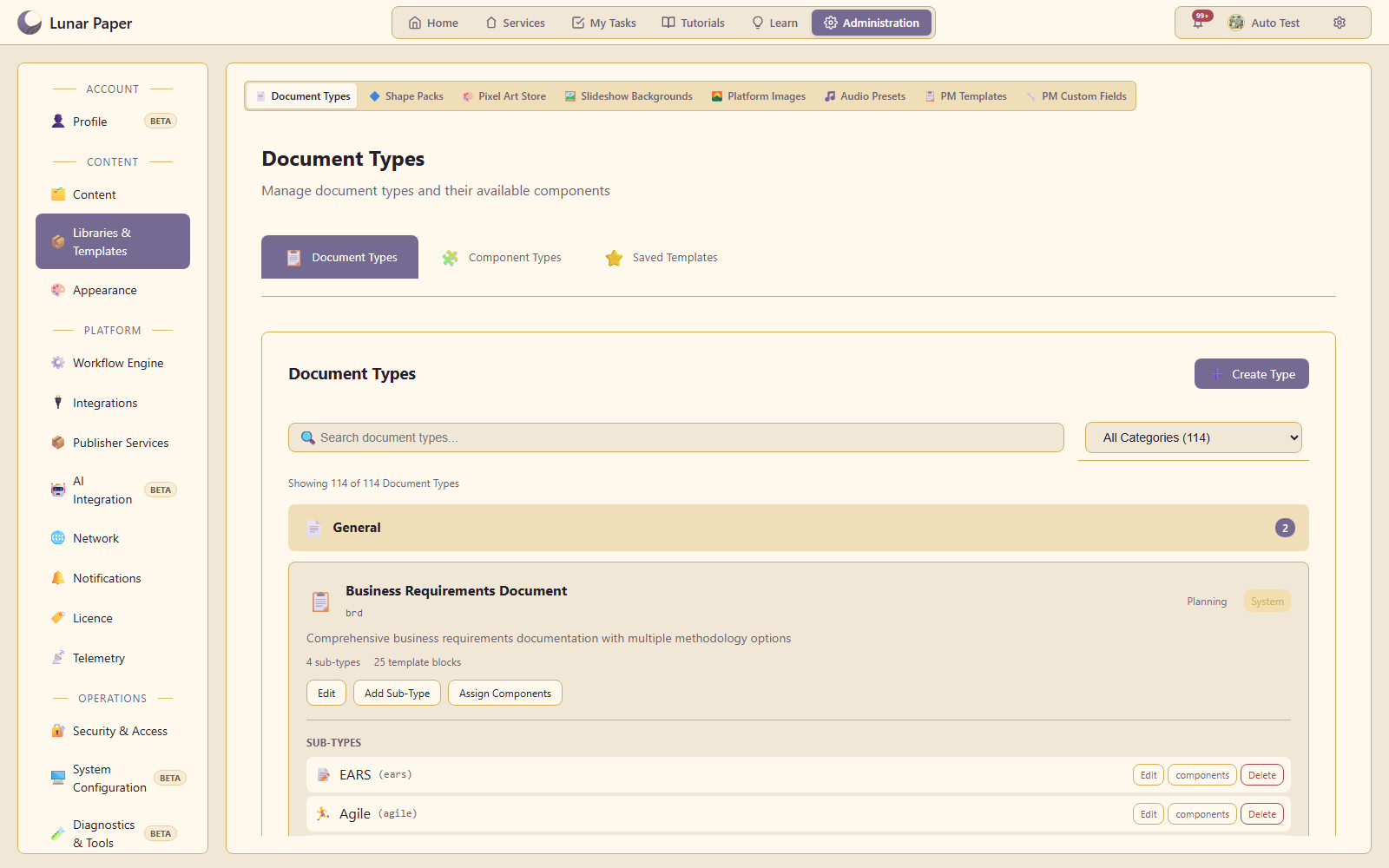
Shared libraries and platform settings.
Administration. Shared libraries and platform settings.Open full size ↗

Users and access

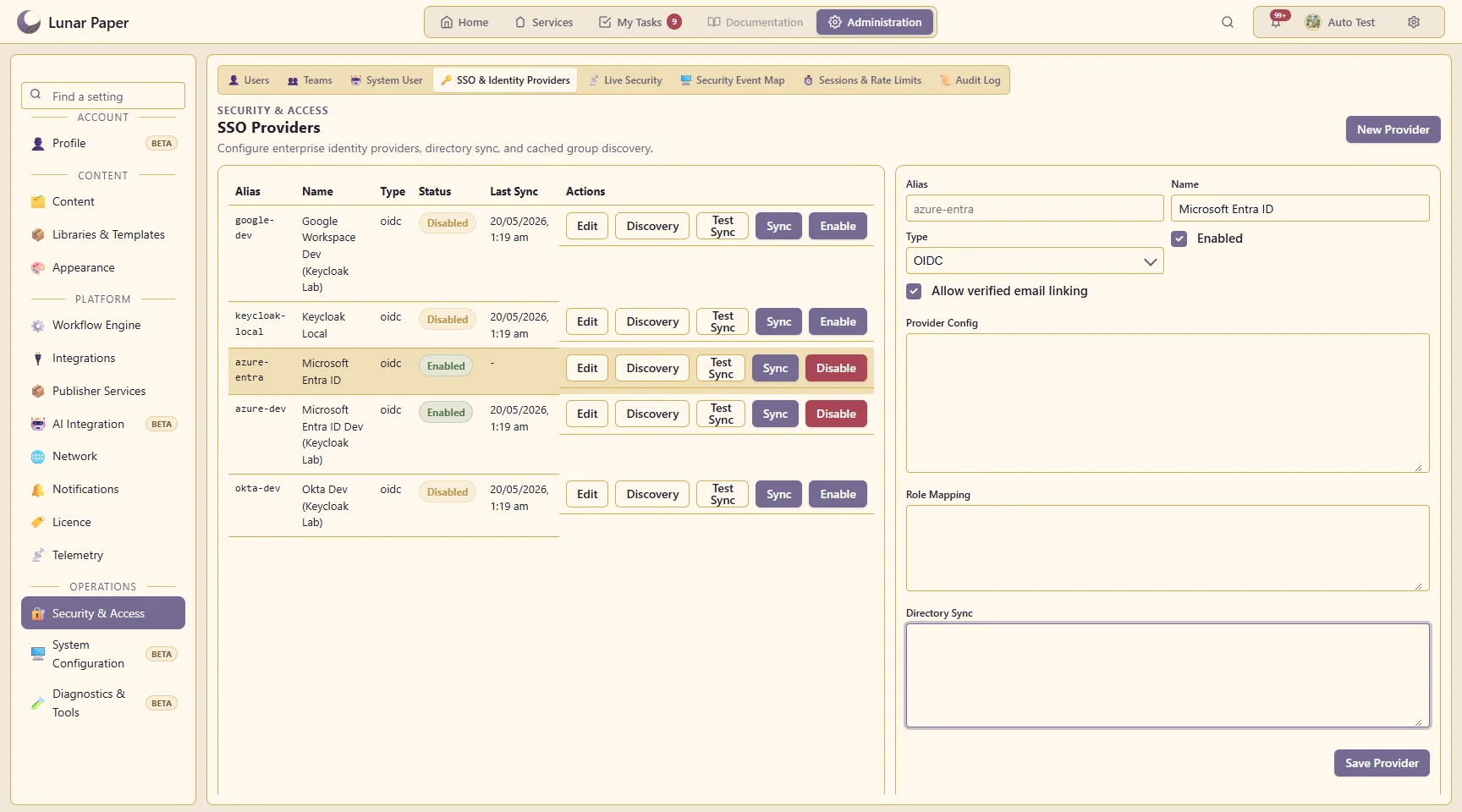
User management includes local accounts, roles, teams and single sign-on through OIDC. Users can manage their profile, regional preferences, multi-factor authentication and active sessions.
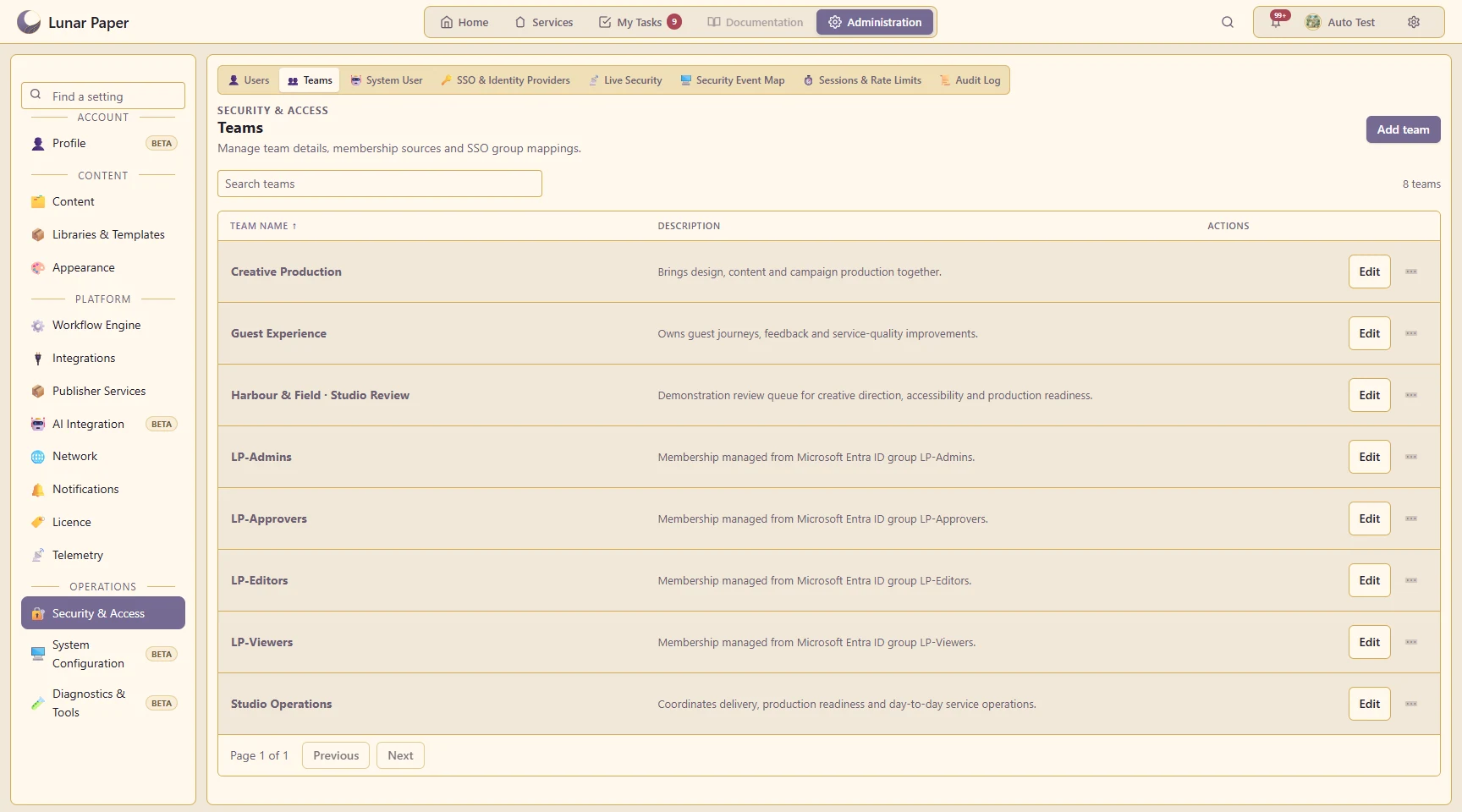
Users and access: Team membership management.
Teams. Team membership management.Open full size ↗
Users and access: Single sign-on provider settings.
Identity providers. Single sign-on provider settings.Open full size ↗
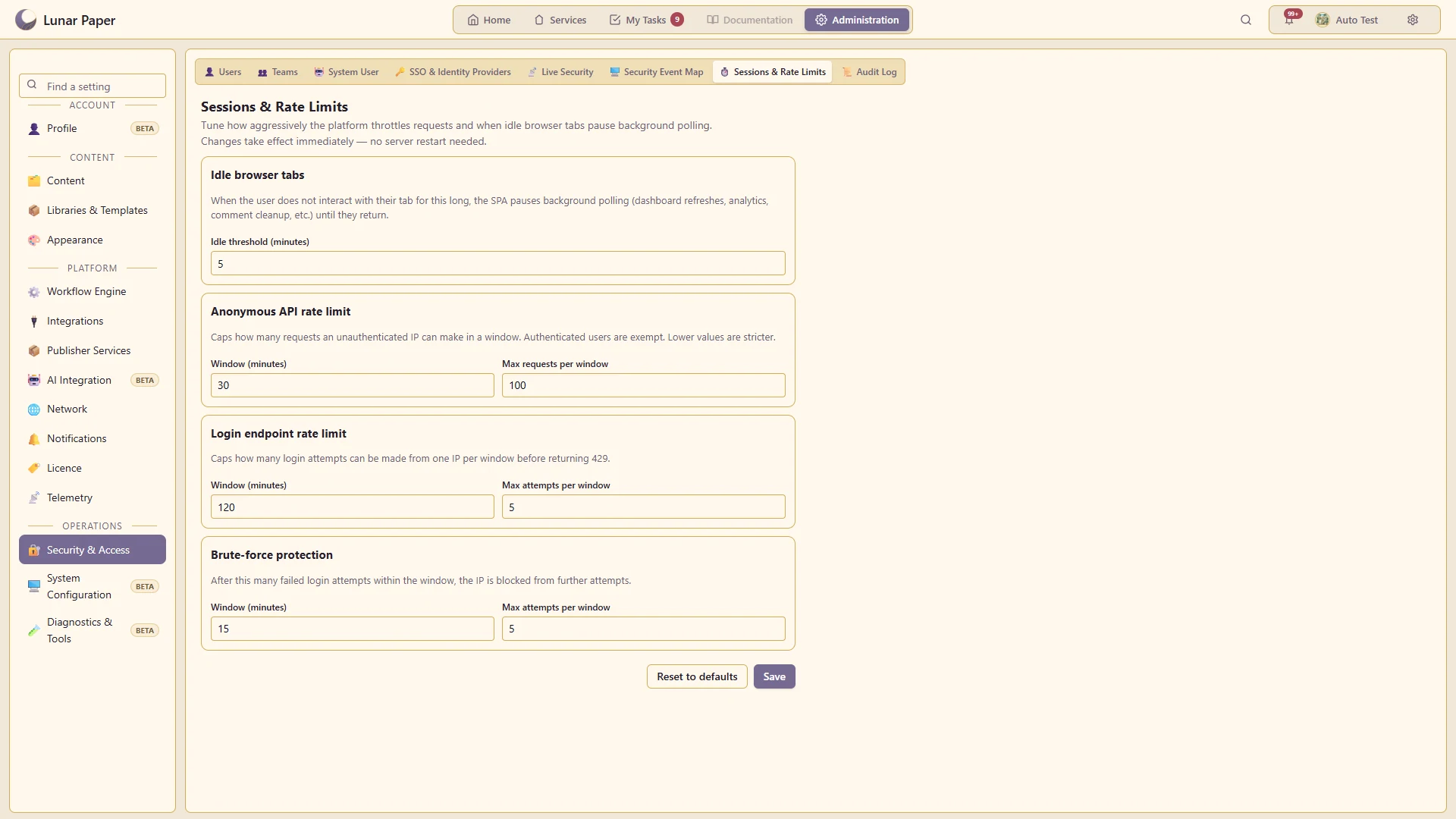
Users and access: Session and access controls.
Sessions and access. Session and access controls.Open full size ↗
1 / 32 / 33 / 3

Service permissions

Access can be assigned to individual users and teams for each service. Published content can have its own audience within the service’s sharing rules.
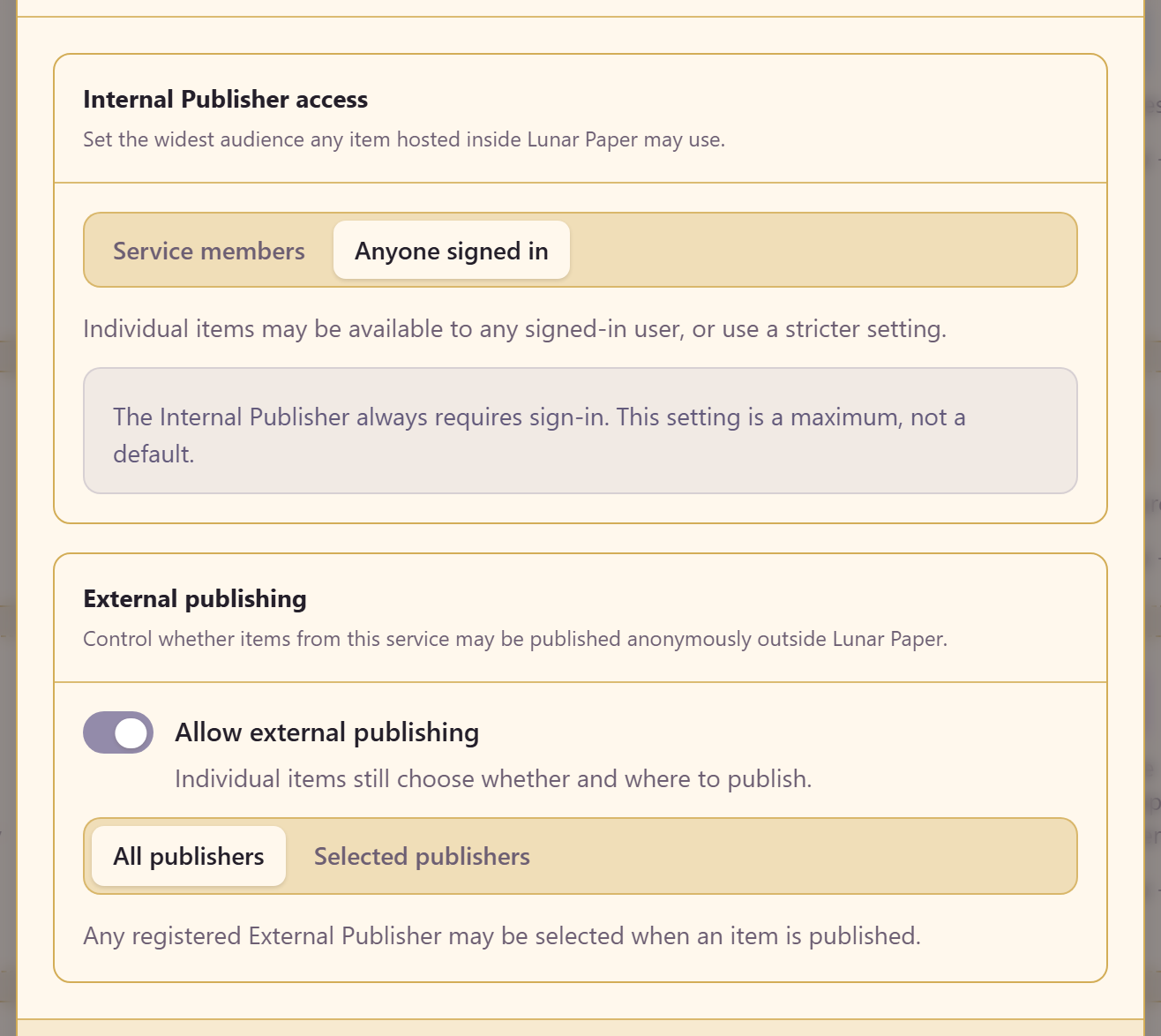
Published content audience settings.
Content access. Published content audience settings.Open full size ↗

Audit logging

Audit logs record user, automation and AI activity across services. Logs include action and actor filters, recorded changes and CSV export.
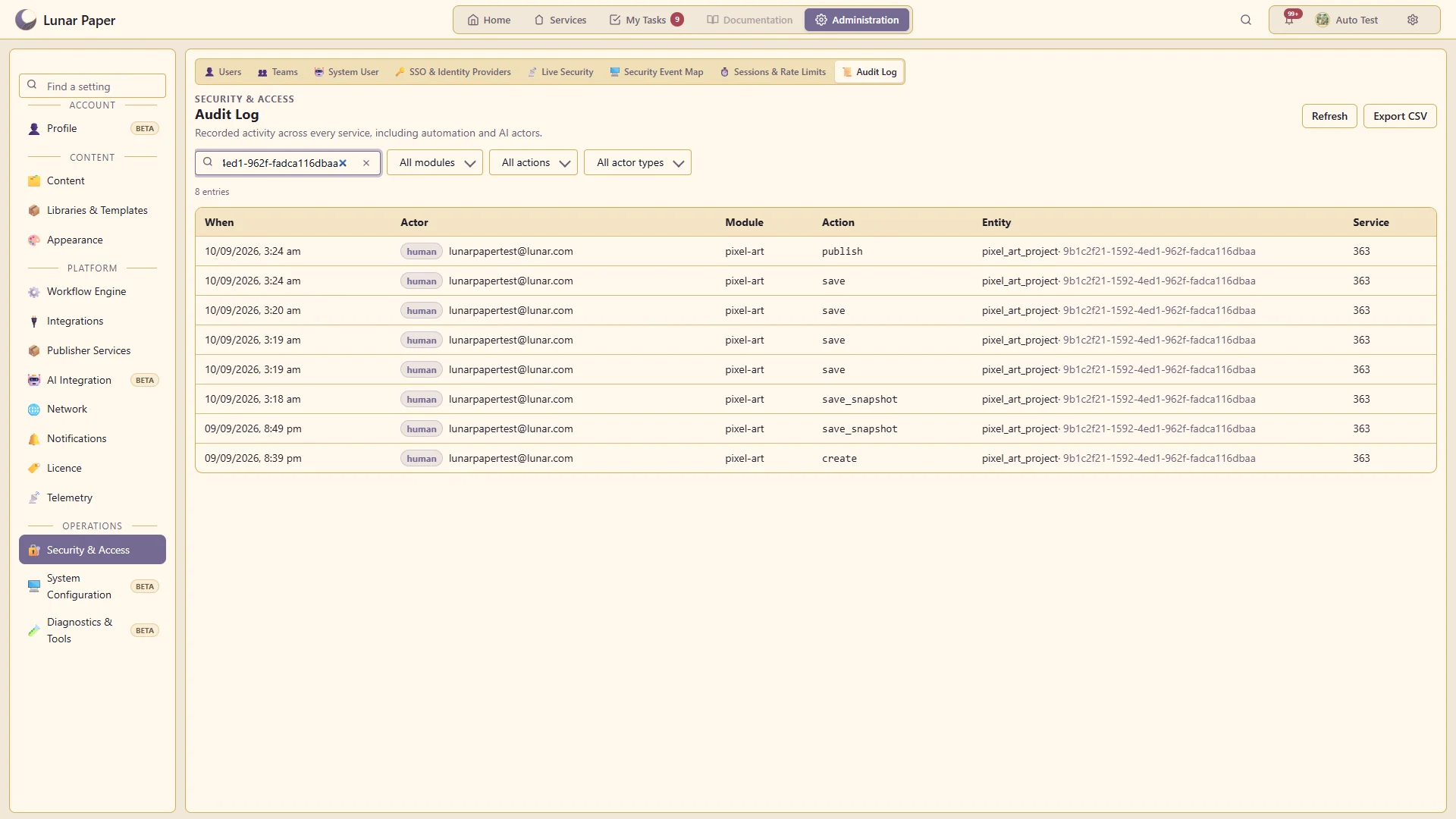
Recorded activity with filters and CSV export.
Audit log. Recorded activity with filters and CSV export.Open full size ↗

03 / Content & assets

Content management includes service content, shared libraries, templates, digital assets and content relationships.

Content management

Administrators can search and manage content across services, including ownership and status. Service members can create, edit, review and publish content according to their permissions.
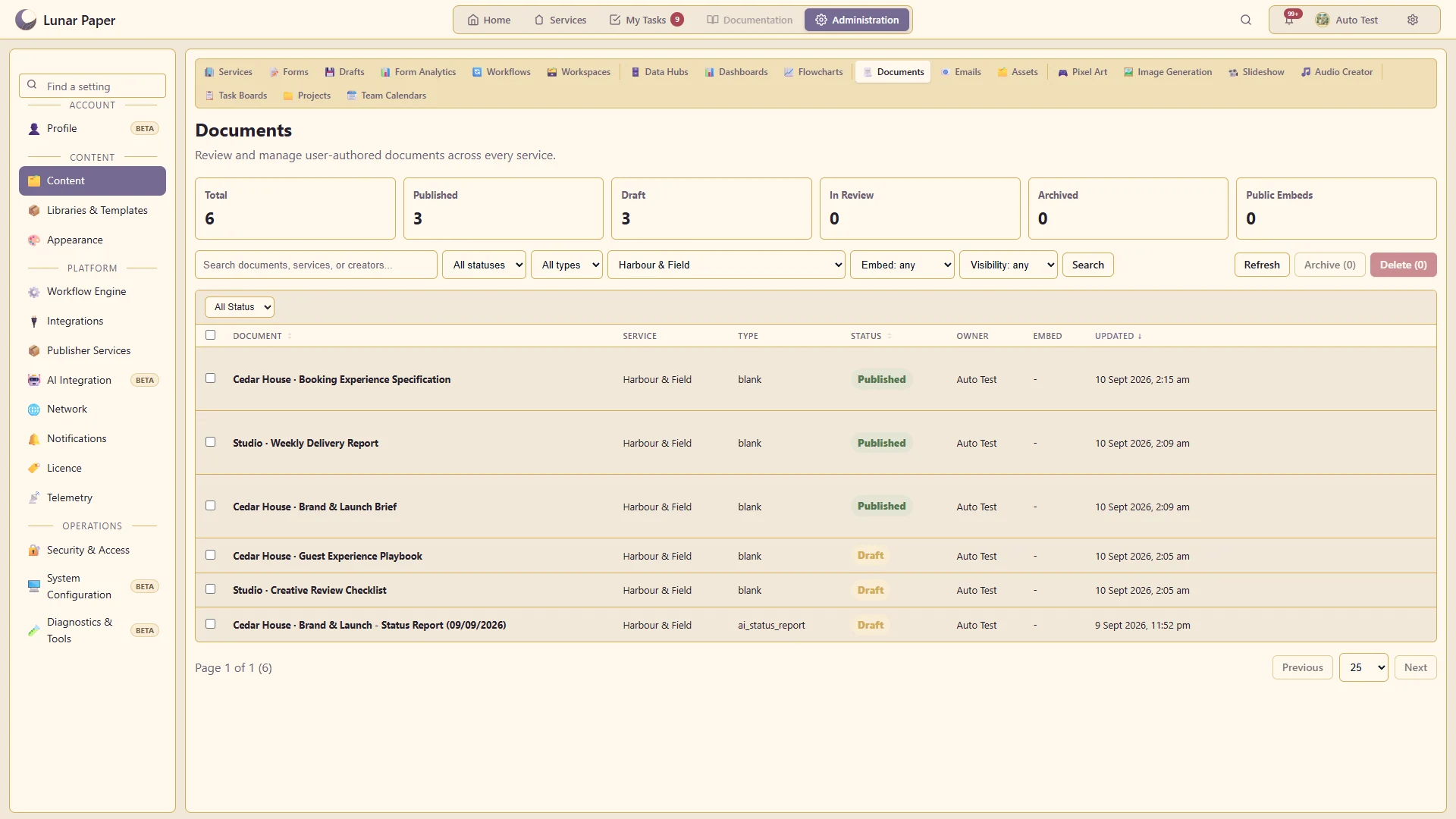
Documents filtered by service, with draft and published status.
Content inventory. Documents filtered by service, with draft and published status.Open full size ↗

Libraries and templates

Shared libraries include document types, reusable components, project templates, shapes and creative presets. These can be managed centrally and reused across services.
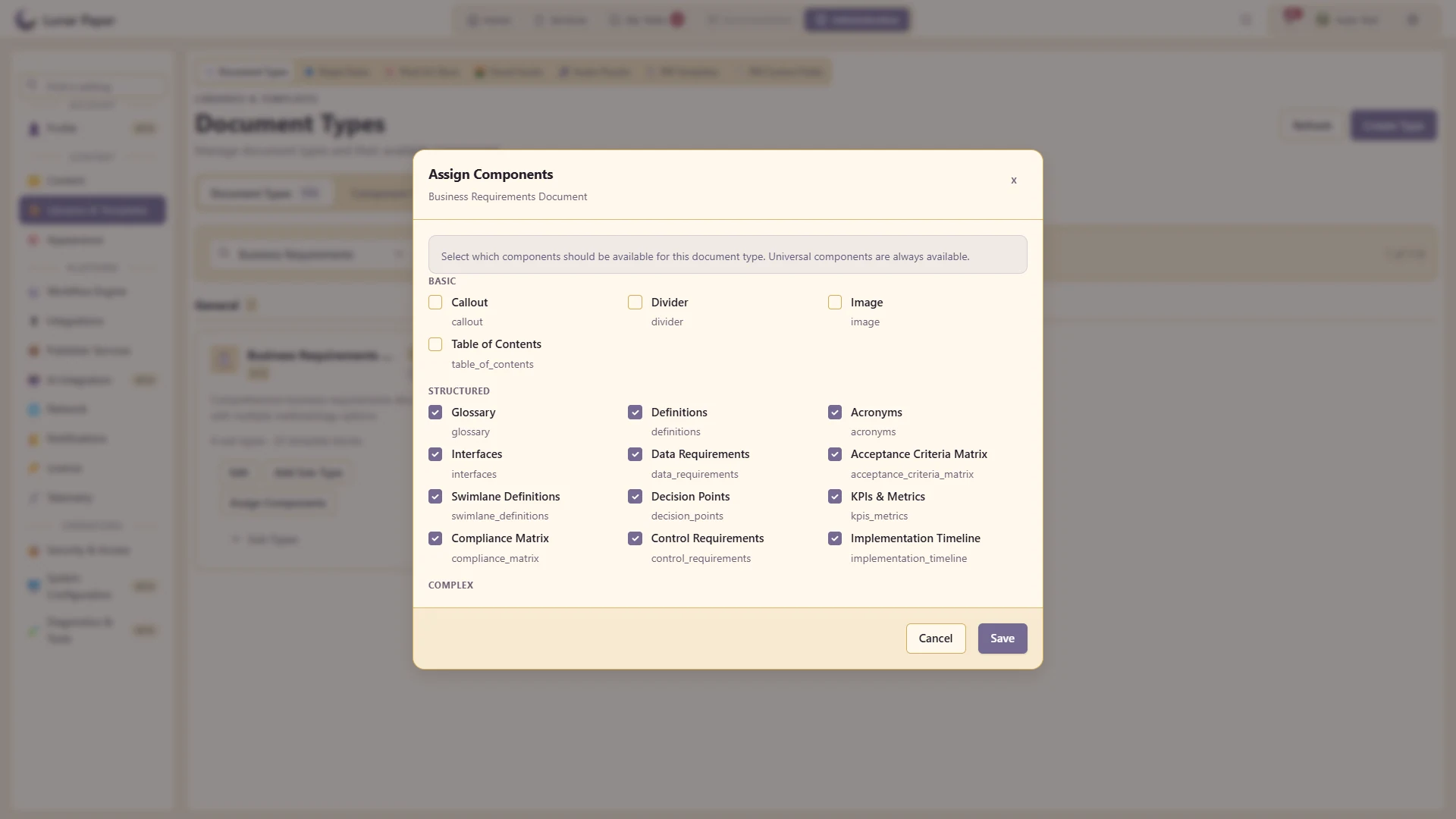
Reusable document components.
Document components. Reusable document components.Open full size ↗

Digital asset management

The asset library includes uploads and application content, with previews, tags, metadata, search filters and duplicate review. Assets can include source details, usage rights, relationships, versions and activity.
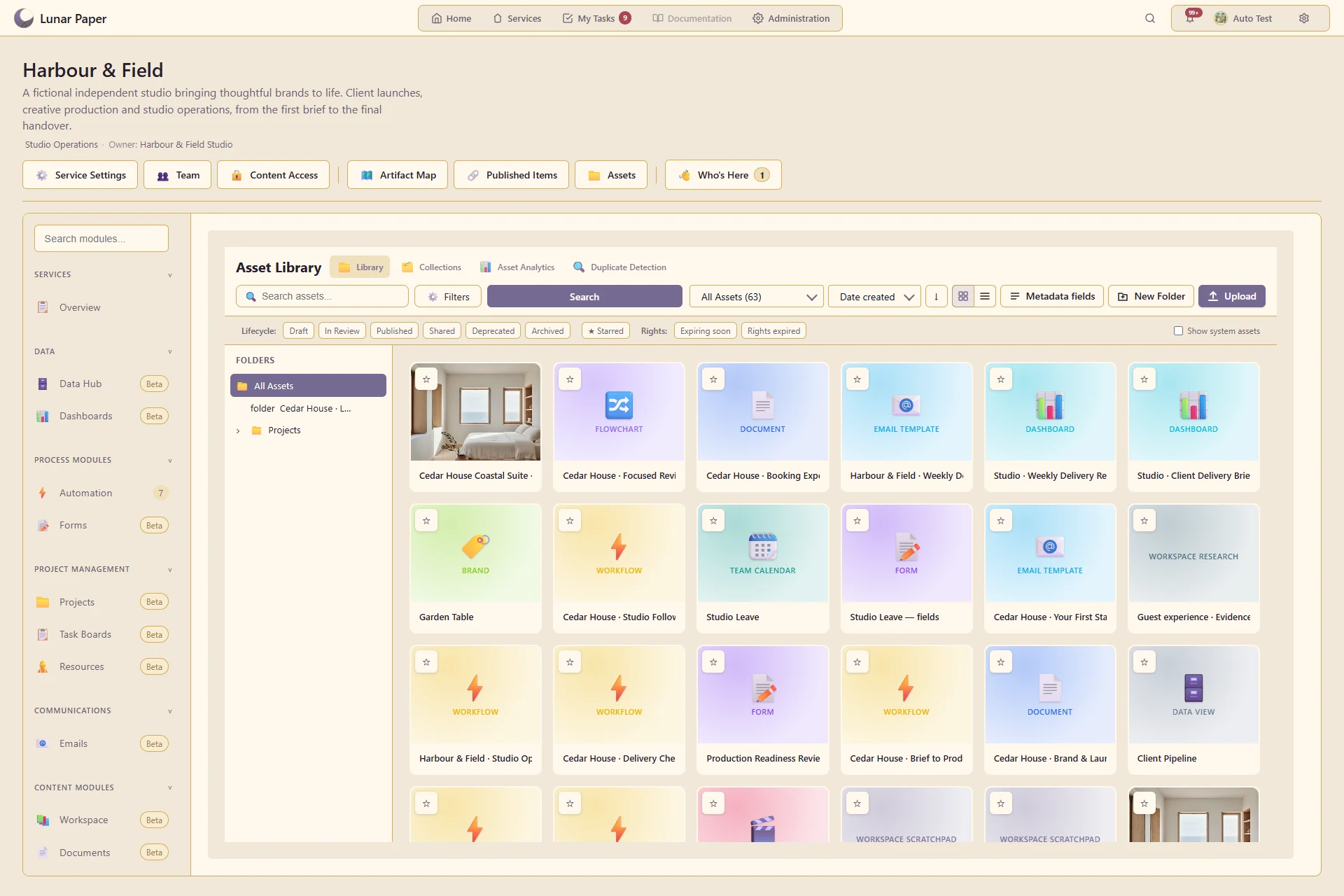
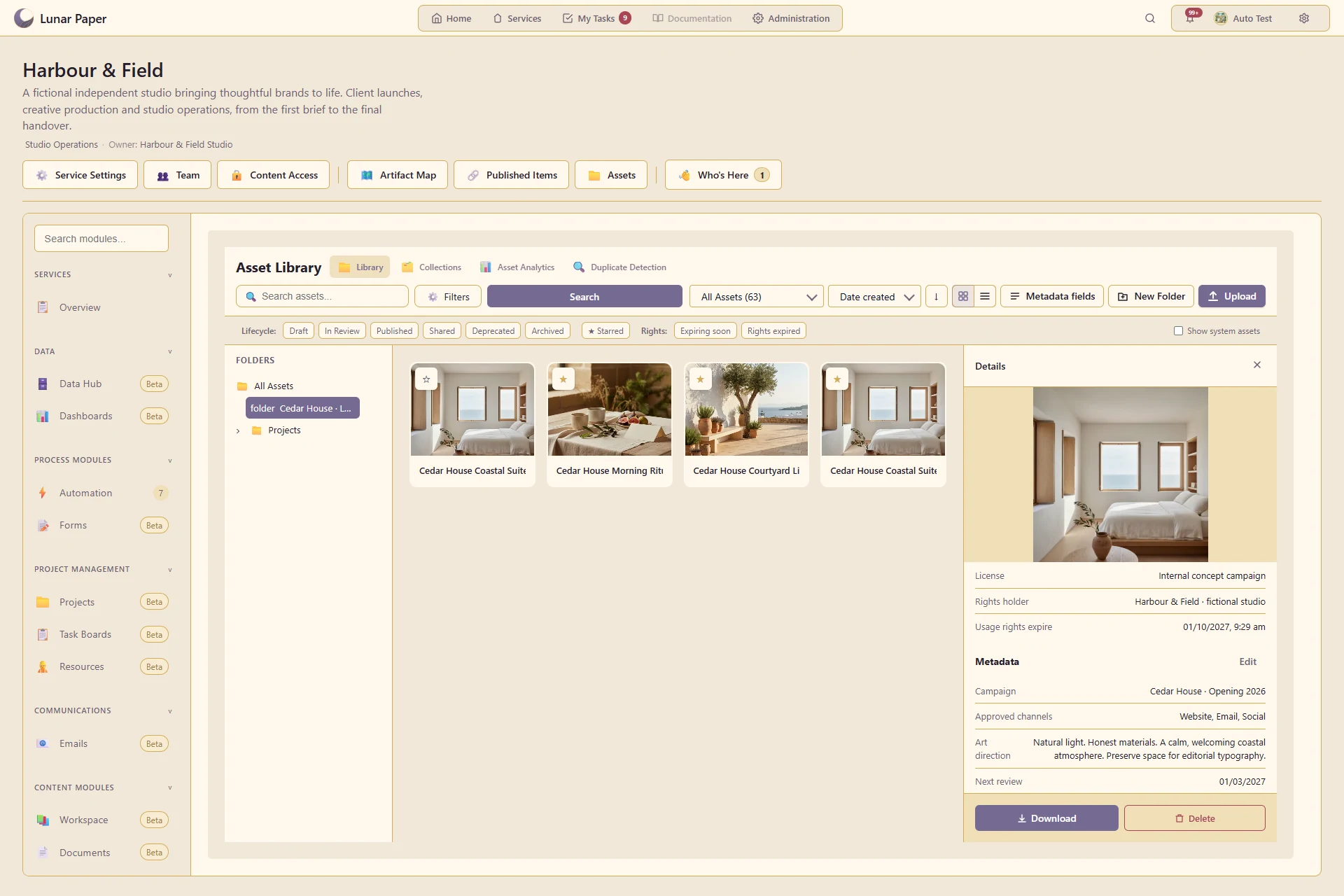
Digital asset management: Content registered in the service asset library.
Asset library. Content registered in the service asset library.Open full size ↗
Digital asset management: Structured metadata for an asset.
Asset metadata. Structured metadata for an asset.Open full size ↗
1 / 22 / 2

Artifact Map

The Artifact Map displays connections between forms, documents, charts, workflows and other service content. It includes supported content dependencies, embedded items and data connections.
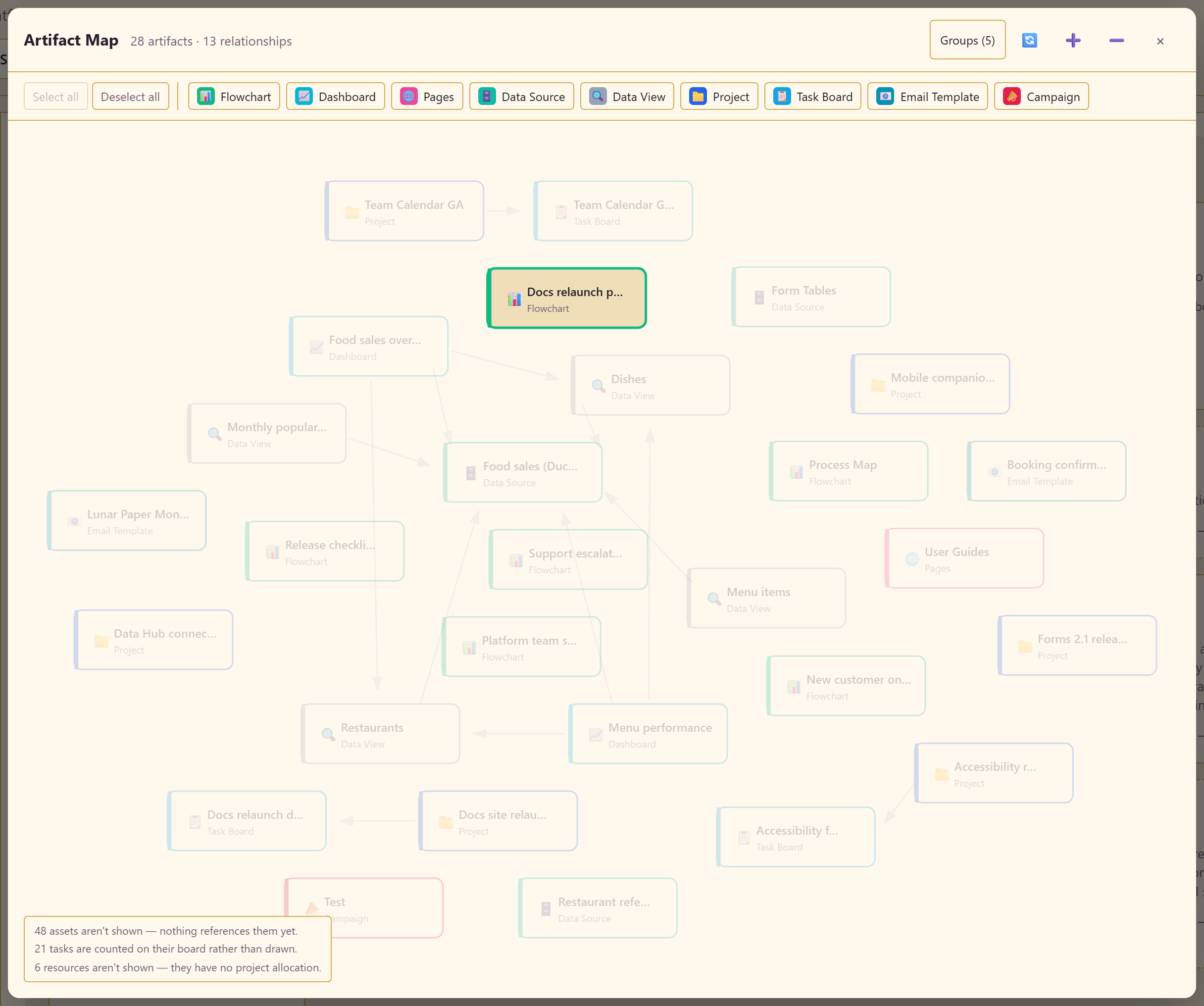
Content relationships within a service.
Artifact Map. Content relationships within a service.Open full size ↗

04 / Appearance

Appearance settings cover personal interface themes, service branding and content themes.

Application themes

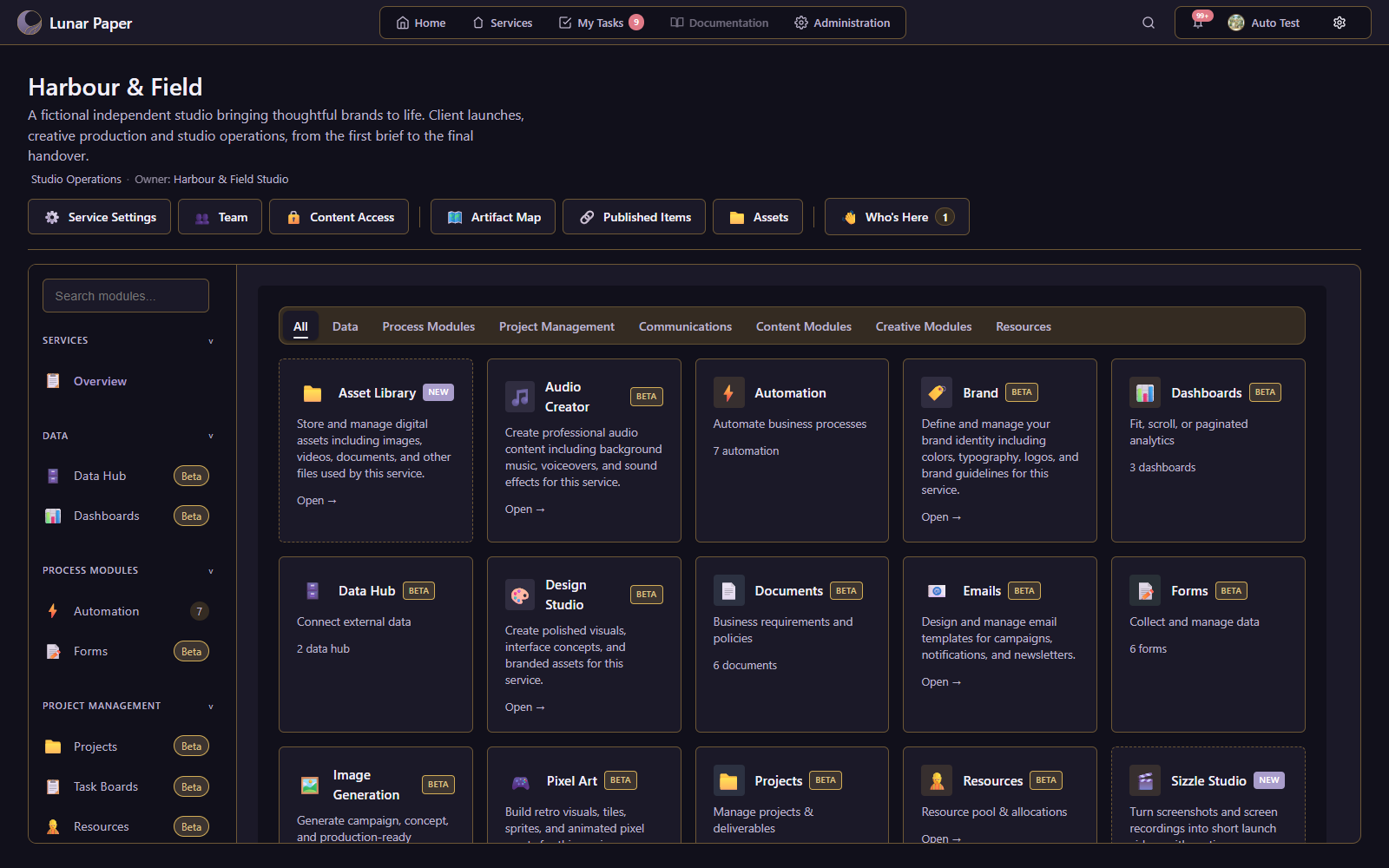
Users can choose from 120 interface themes. Interface themes are separate from the themes applied to forms, documents and dashboards.
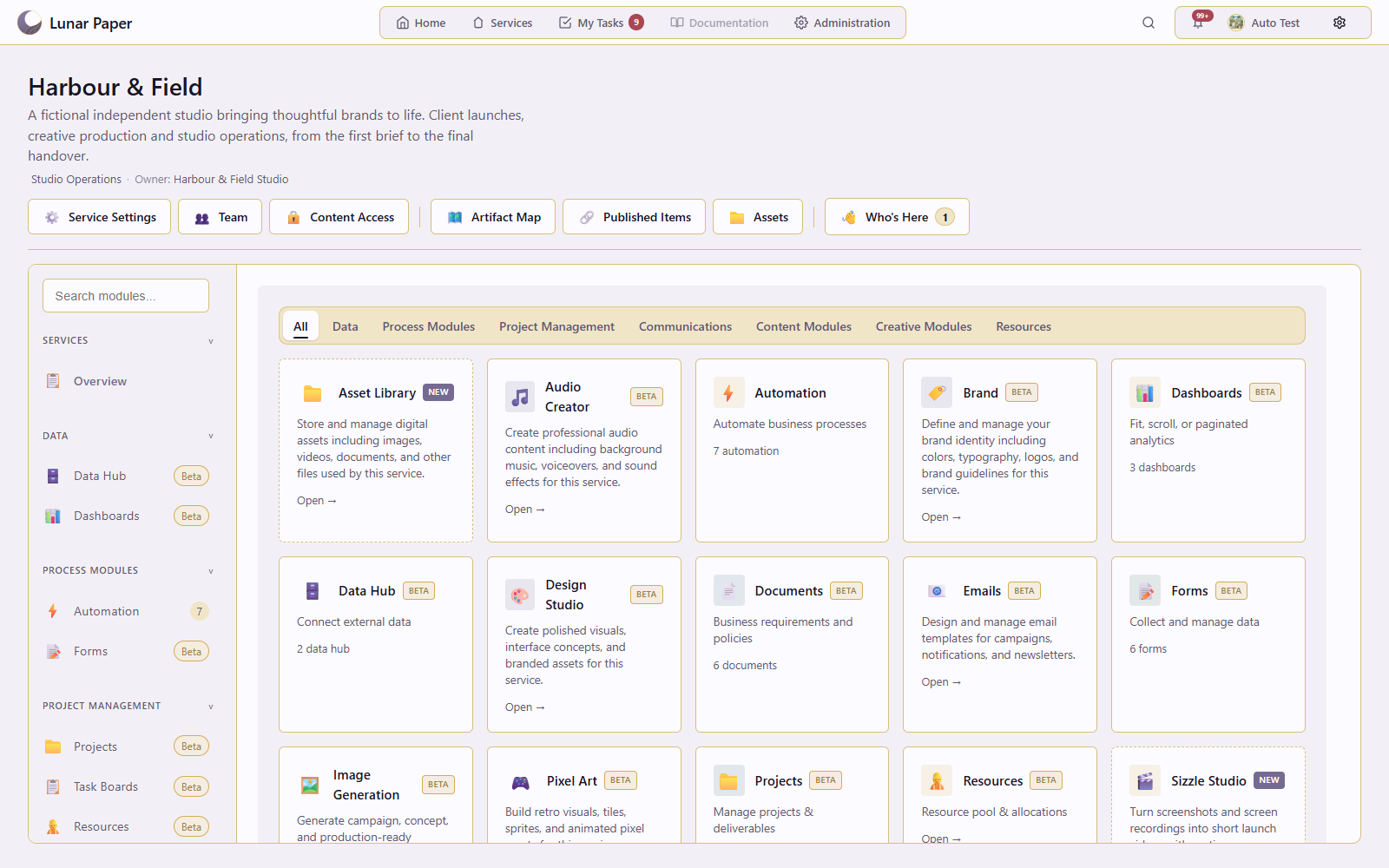
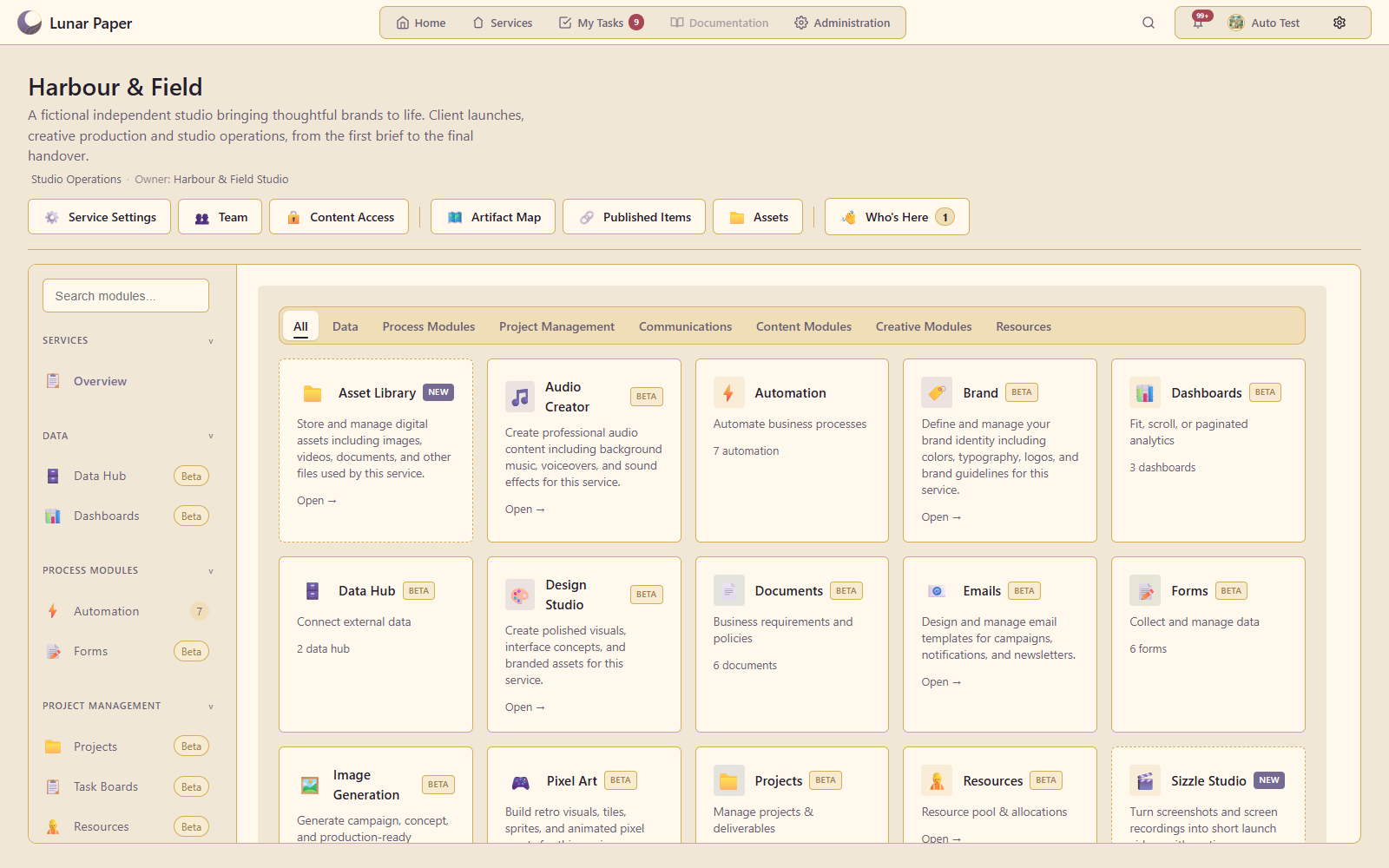
Application themes: Lunar Paper theme.
Lunar Paper. Lunar Paper theme.Open full size ↗
Application themes: Lunar Paper Dark theme.
Lunar Paper Dark. Lunar Paper Dark theme.Open full size ↗
Application themes: Lunar Paper Sepia theme.
Lunar Paper Sepia. Lunar Paper Sepia theme.Open full size ↗
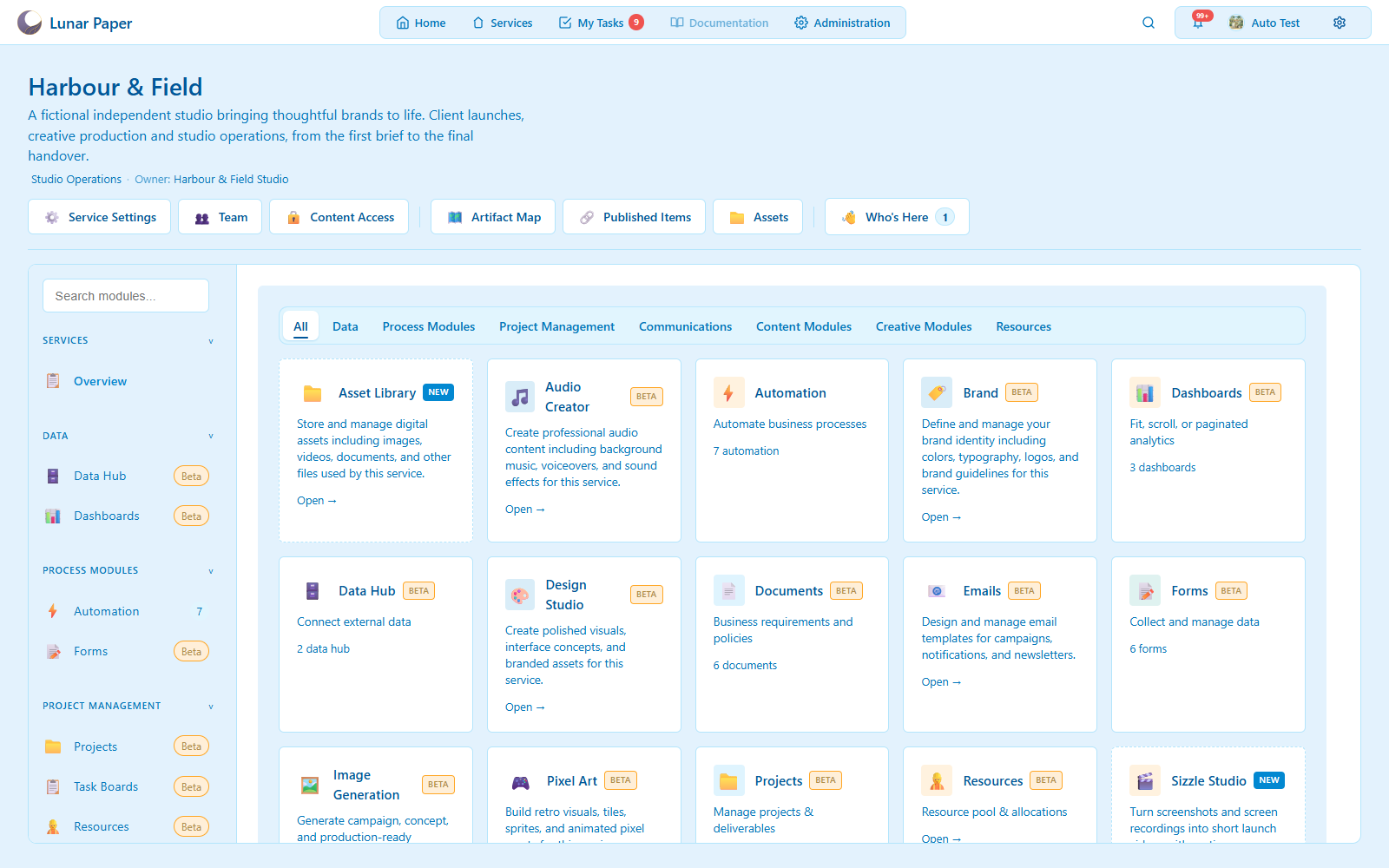
Application themes: Ocean theme.
Ocean. Ocean theme.Open full size ↗
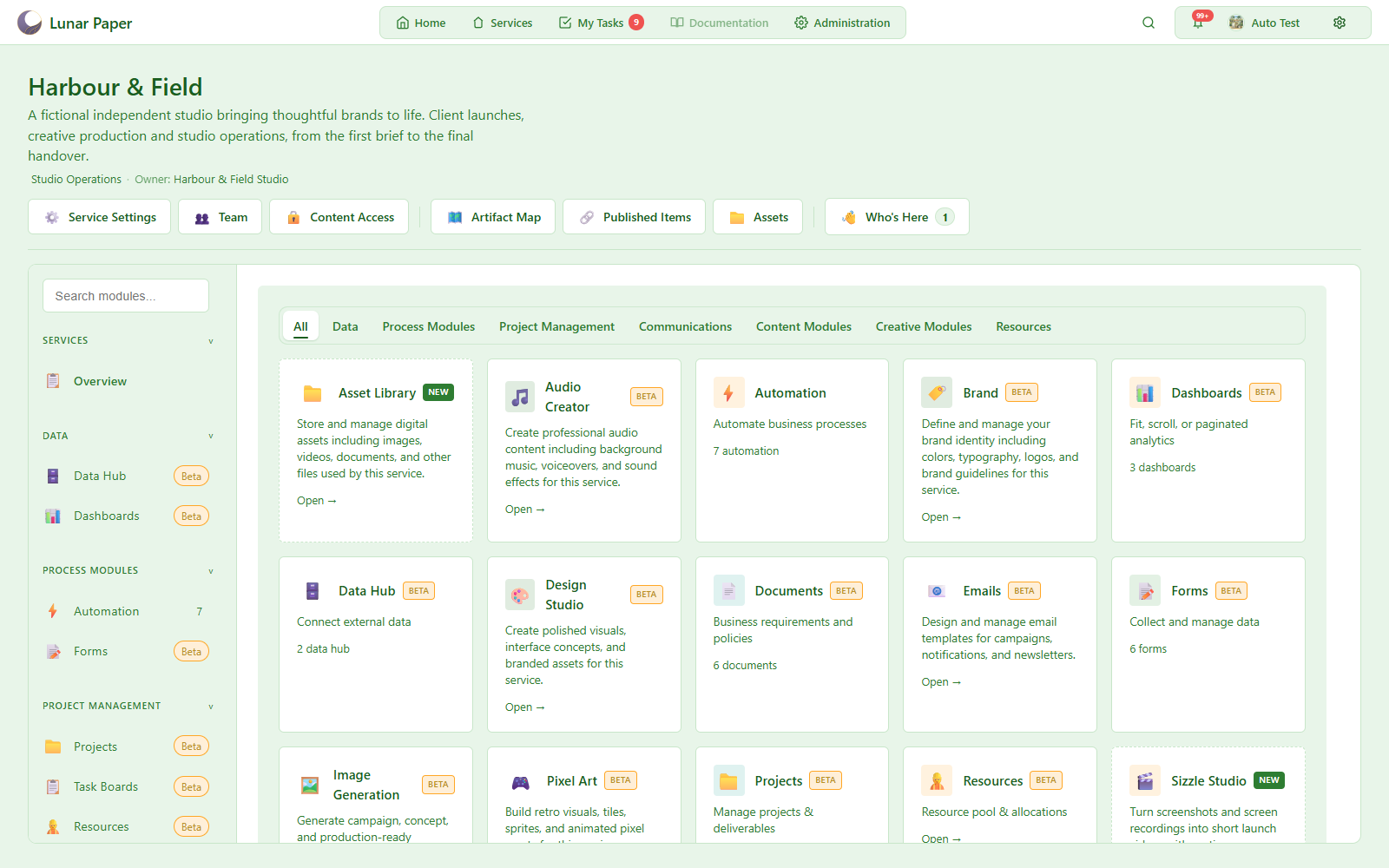
Application themes: Forest theme.
Forest. Forest theme.Open full size ↗
1 / 52 / 53 / 54 / 55 / 5

Service appearance

Each service can have its own icon, accent colour and banner.
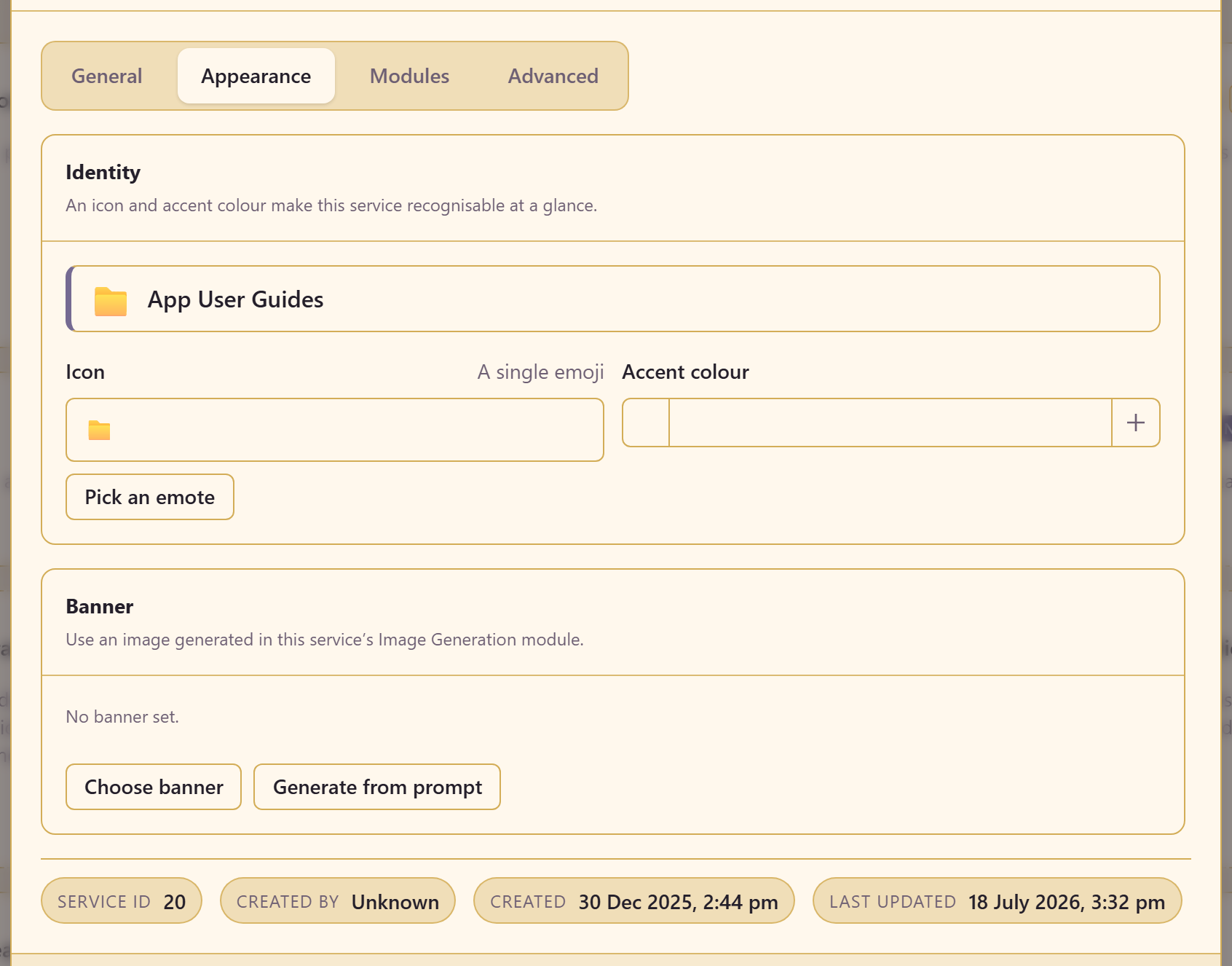
Icon, accent colour and banner settings.
Service appearance. Icon, accent colour and banner settings.Open full size ↗

Content themes

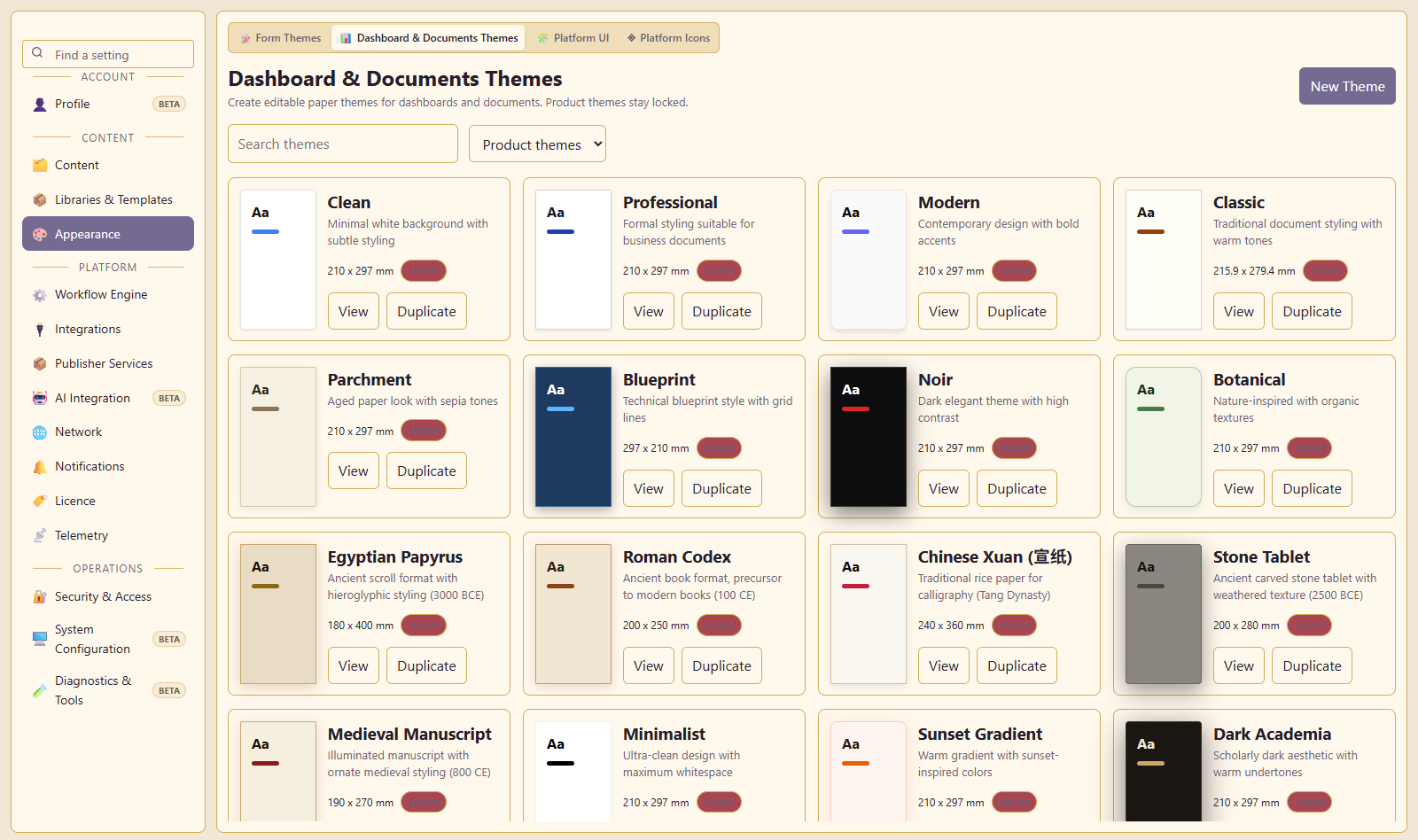
Form themes control form appearance. Paper themes control document and dashboard appearance. Administrators can duplicate existing themes to create custom versions.
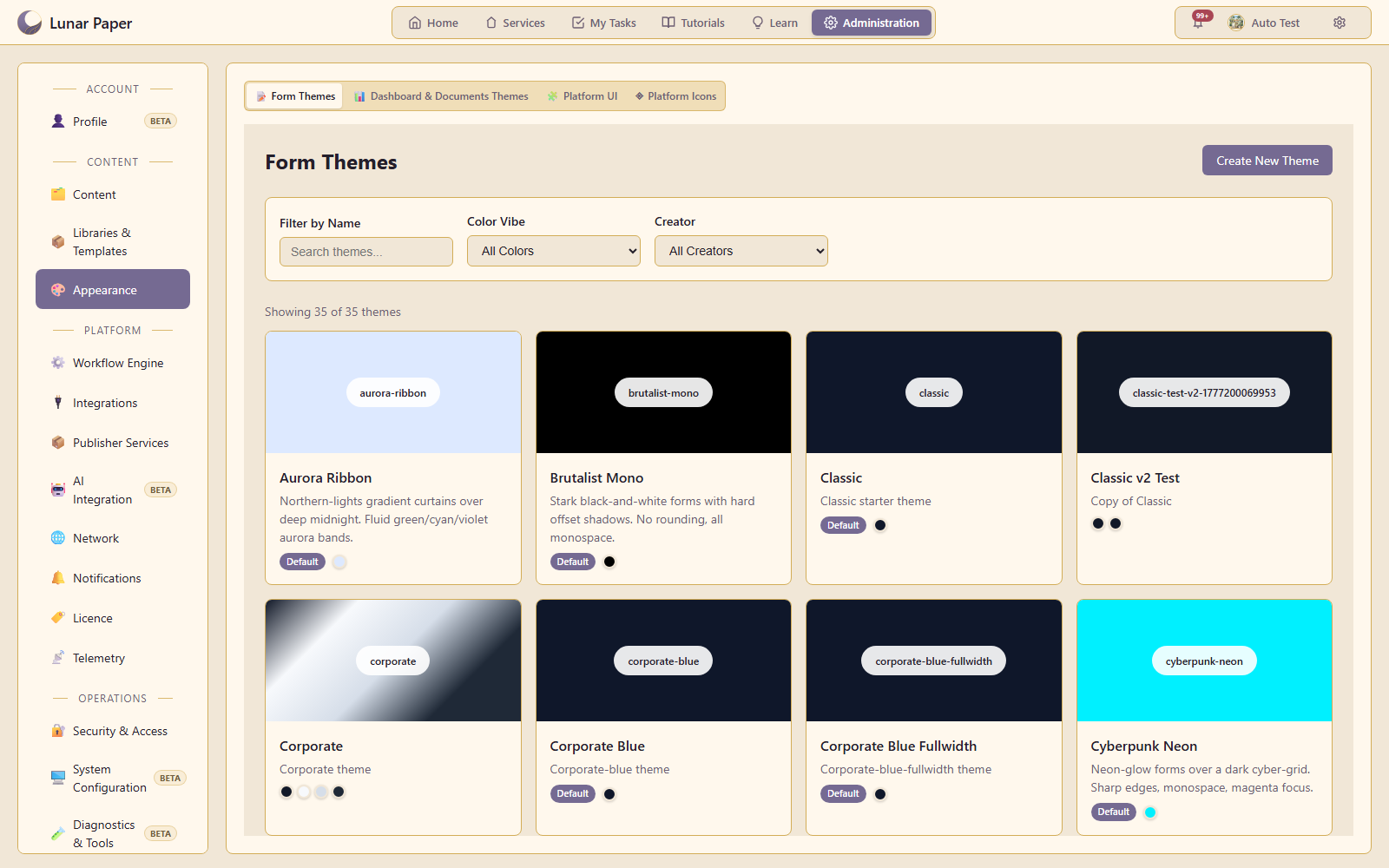
Content themes: Available Form themes and colour previews.
Form themes. Available Form themes and colour previews.Open full size ↗
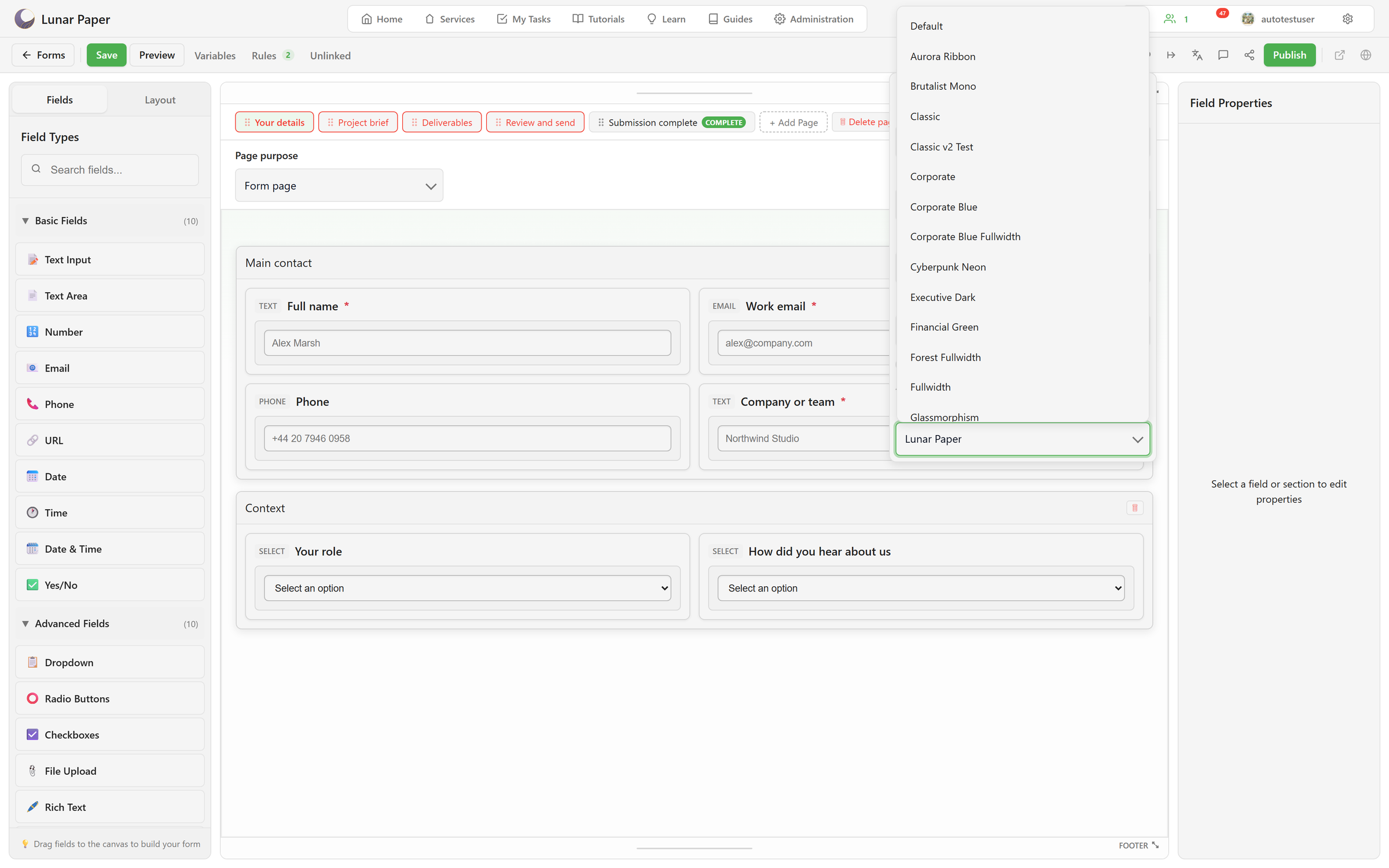
Content themes: Theme selection in the form editor.
Form theme selection. Theme selection in the form editor.Open full size ↗
Content themes: Paper theme previews for documents and dashboards.
Paper themes. Paper theme previews for documents and dashboards.Open full size ↗
1 / 32 / 33 / 3

05 / Optional AI

AI is optional and uses your own providers. Features include content generation, editing, animation and research.

Bring your own AI

Connect any OpenAI-compatible API using your own credentials. Requests go directly from your installation to your chosen provider, with any usage charges paid to that provider.

Multiple AI providers

Multiple providers and models can be connected at the same time and assigned to different applications. Administrators can configure instructions and usage limits, and review recorded usage and costs.
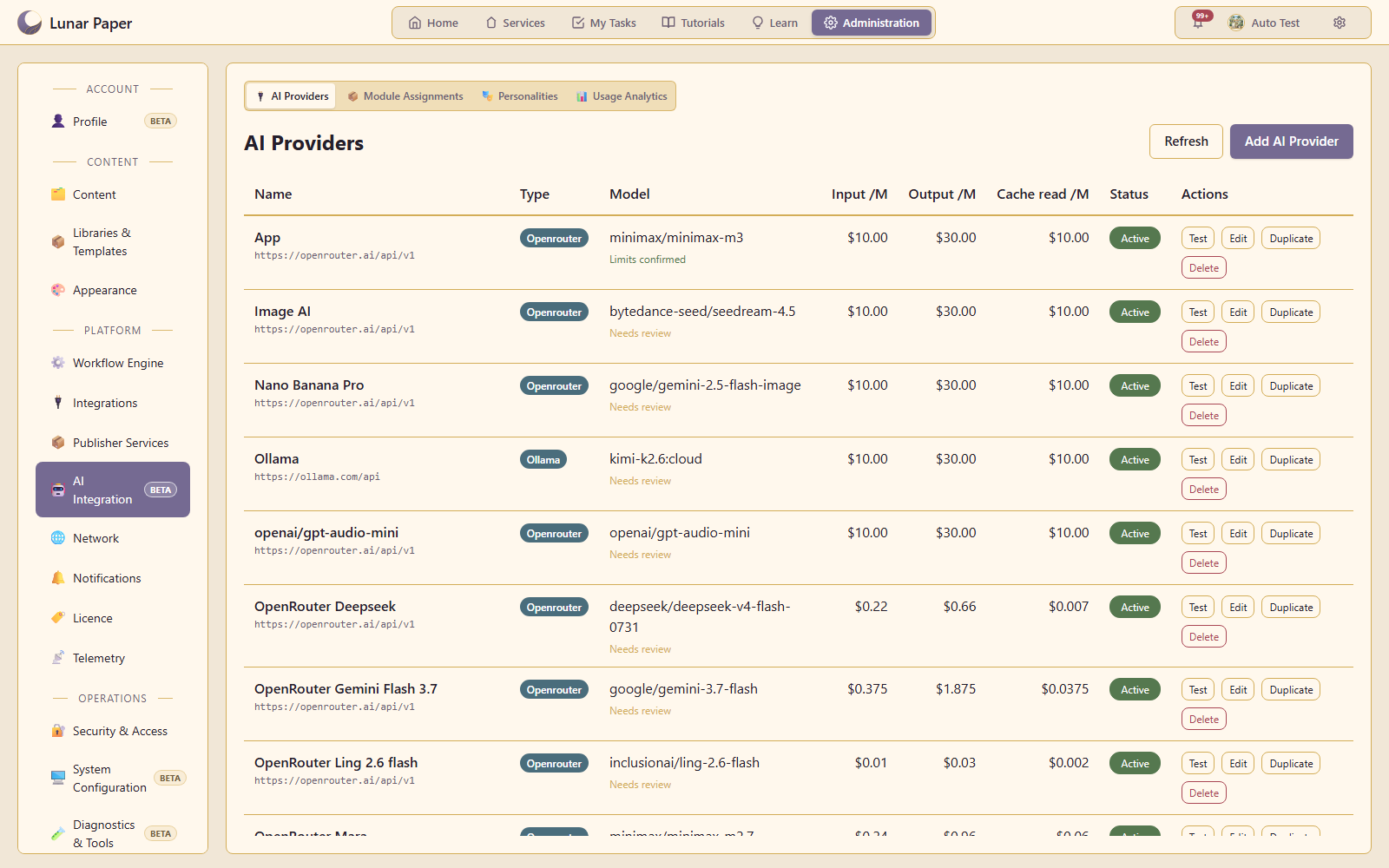
Configured providers and models. Displayed rates are example settings.
AI providers and models. Configured providers and models. Displayed rates are example settings.Open full size ↗

AI personalities

AI personalities define the tone and style of supported AI output. Users can select a personality for a conversation or set a personal default, with a platform default managed by administrators.
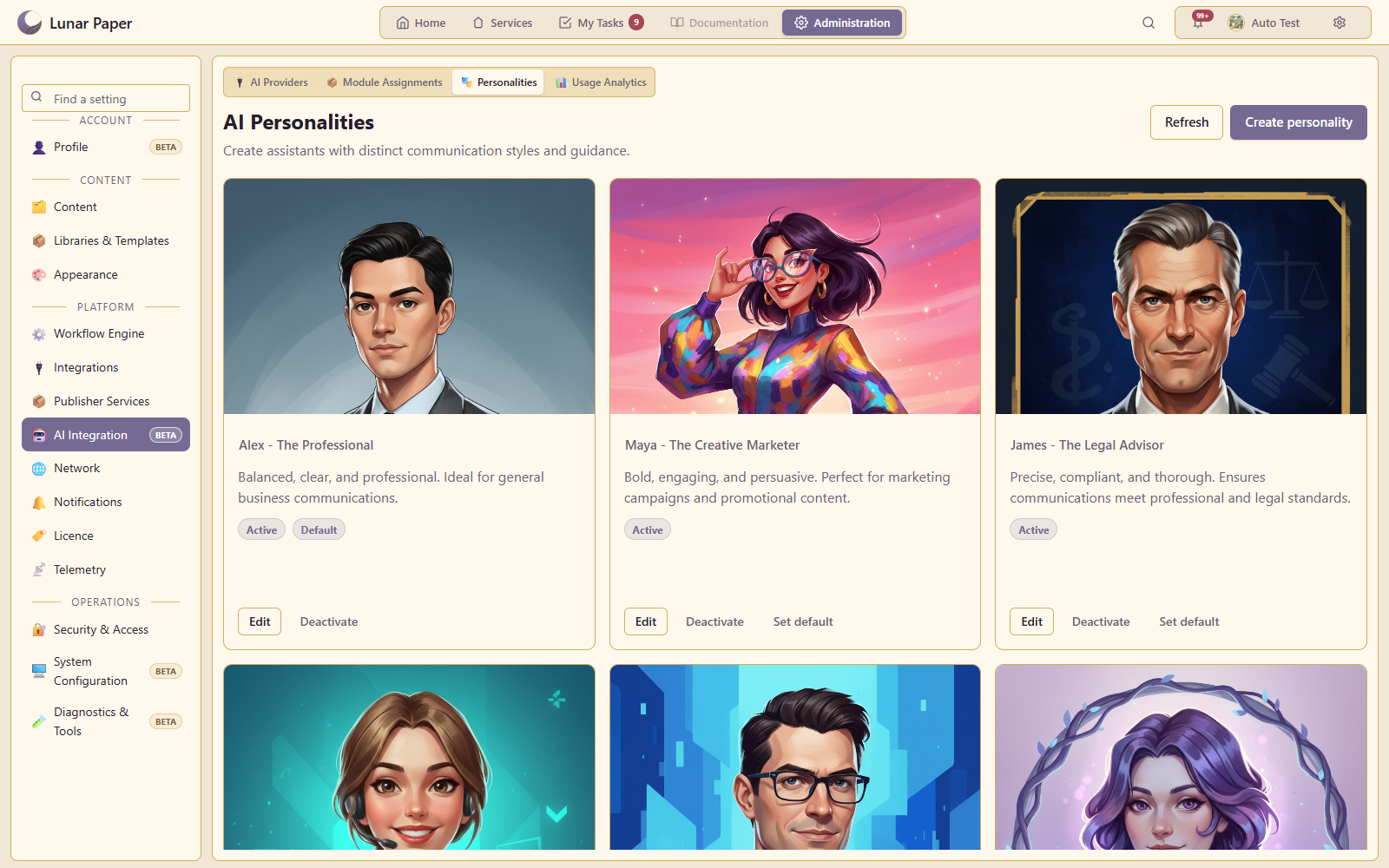
Available personalities, active status and platform default.
AI personalities. Available personalities, active status and platform default.Open full size ↗

AI features

AI can be used for document generation, image generation, research, audio creation, form planning and generation, and many other use cases.
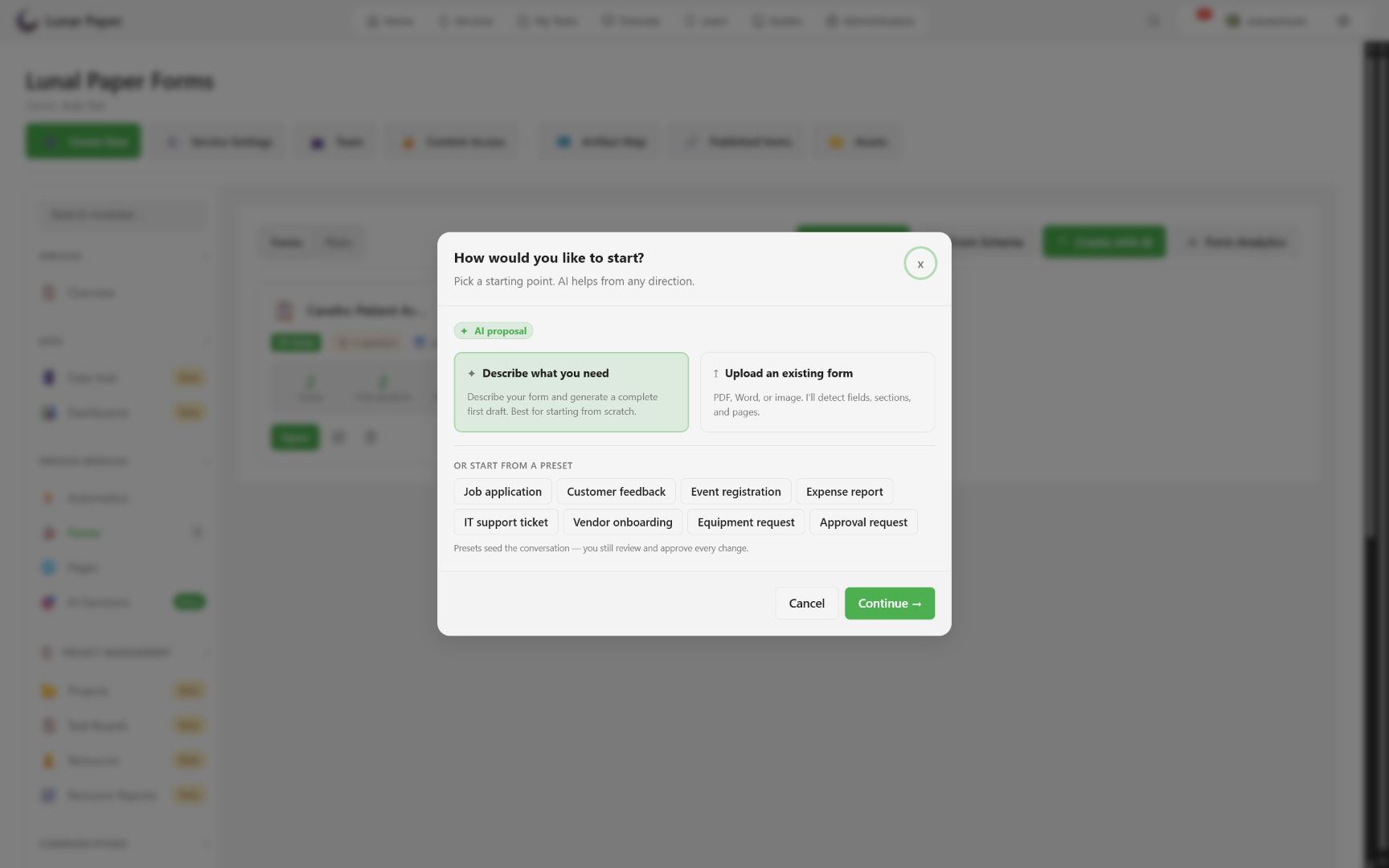
AI features: AI form creation from a written description.
Form generation. AI form creation from a written description.Open full size ↗
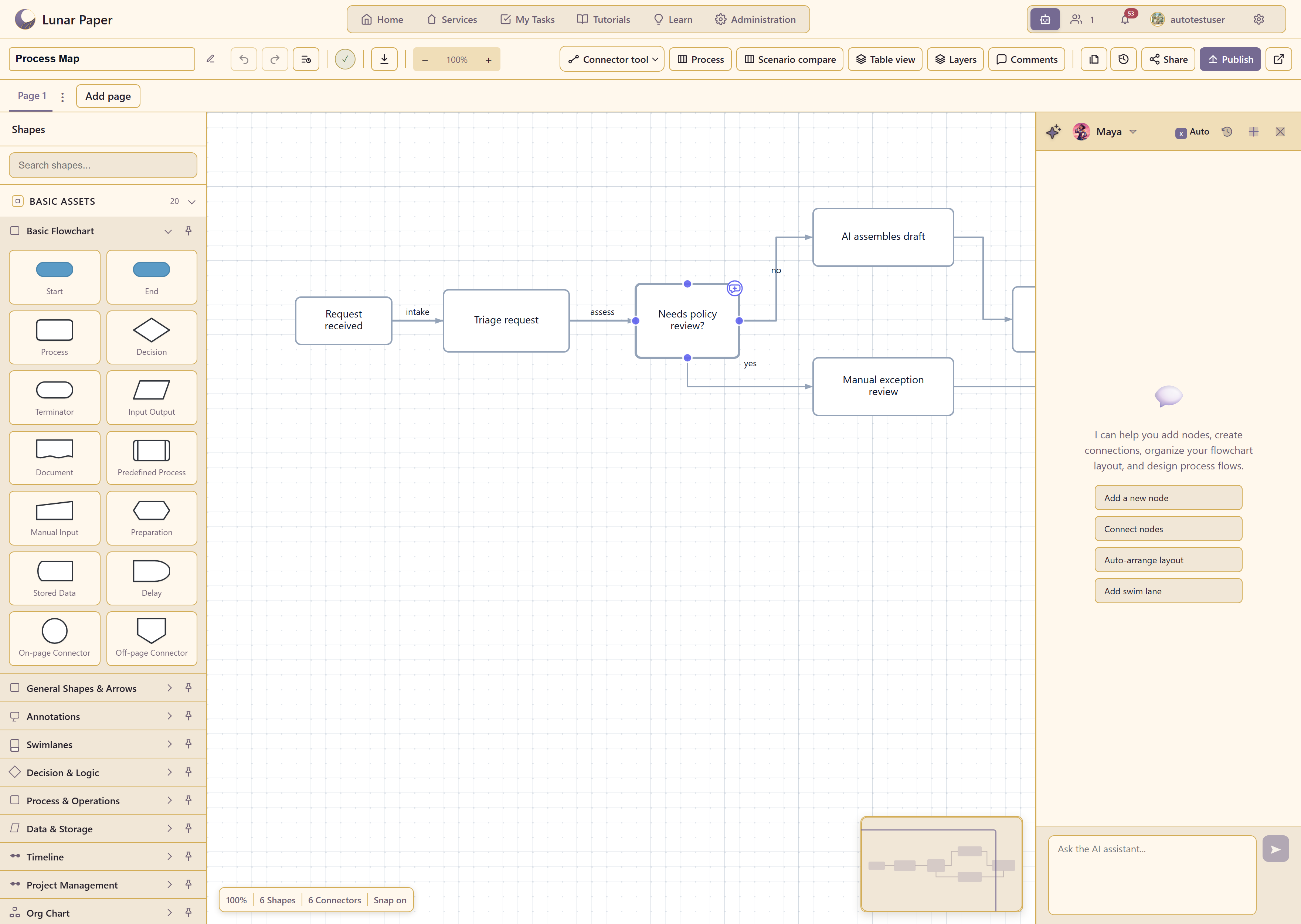
AI features: AI assistance in Flowchart Designer.
Diagram assistant. AI assistance in Flowchart Designer.Open full size ↗
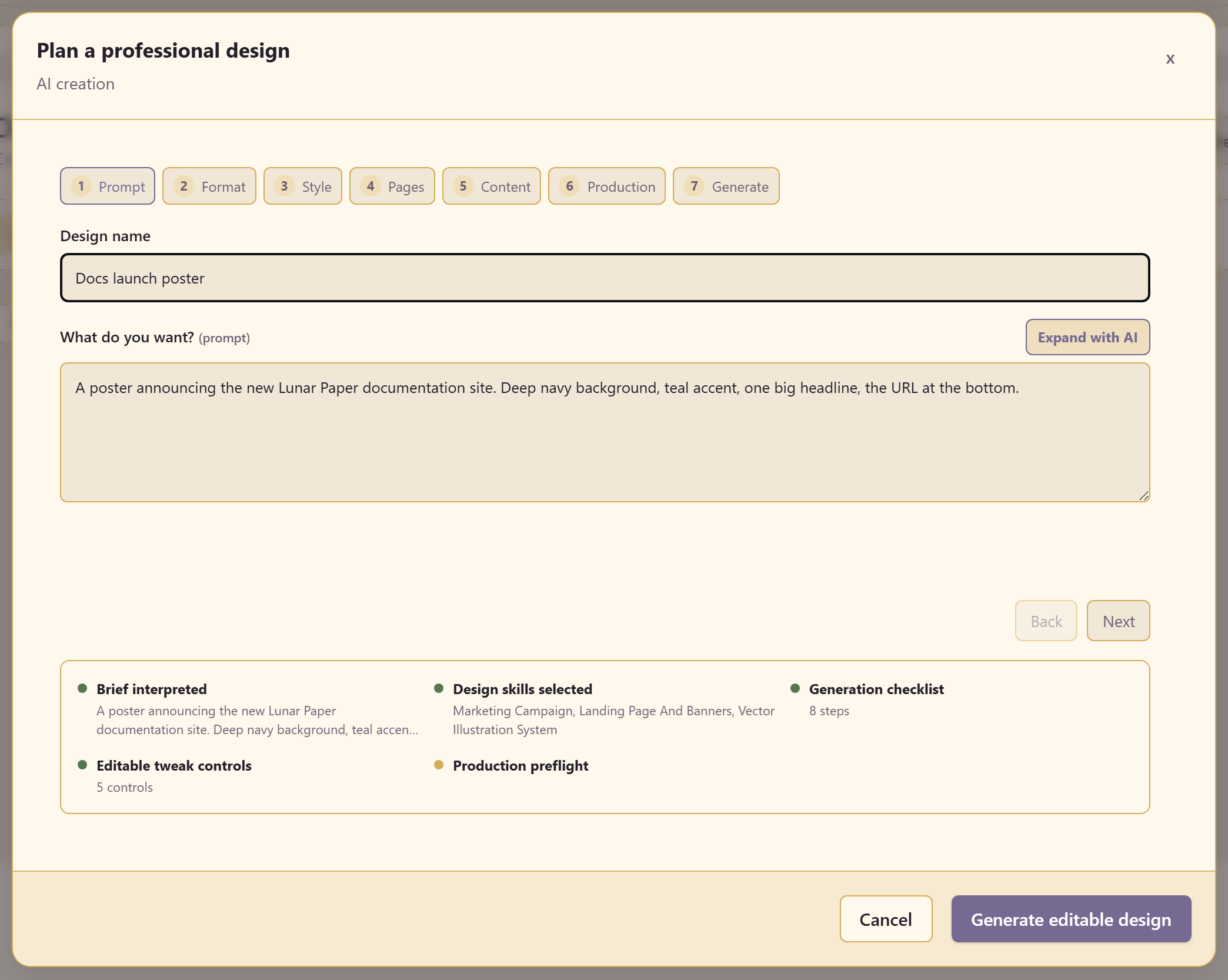
AI features: Design creation from a written brief.
Design generation. Design creation from a written brief.Open full size ↗
1 / 32 / 33 / 3

06 / Integrations

Email integrations

The platform supports multiple email providers for automations, notifications and other email sending purposes.
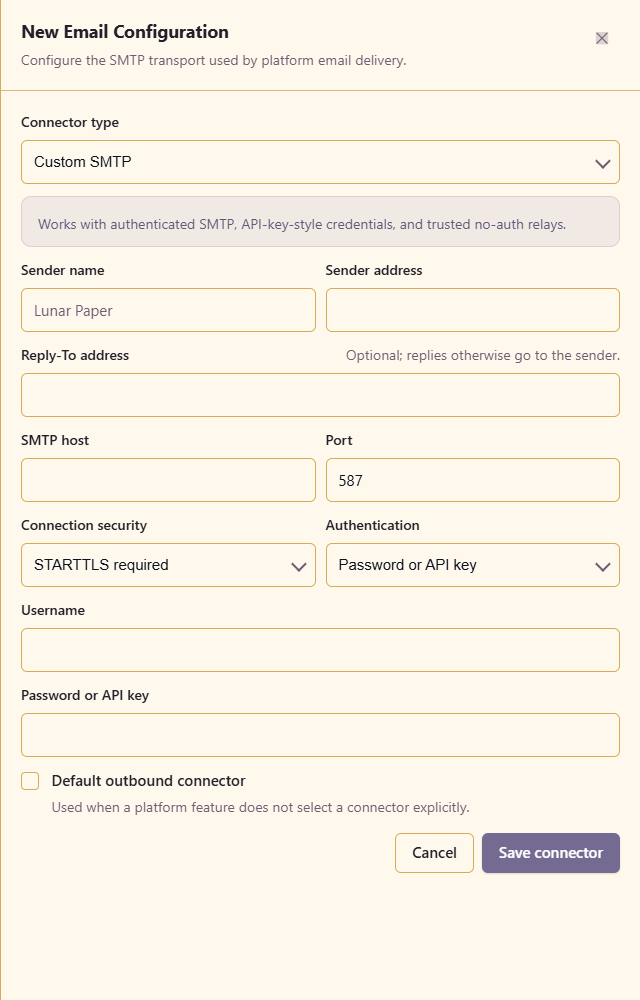
SMTP sender, security, authentication and default connection settings.
Email settings. SMTP sender, security, authentication and default connection settings.Open full size ↗

Data integrations

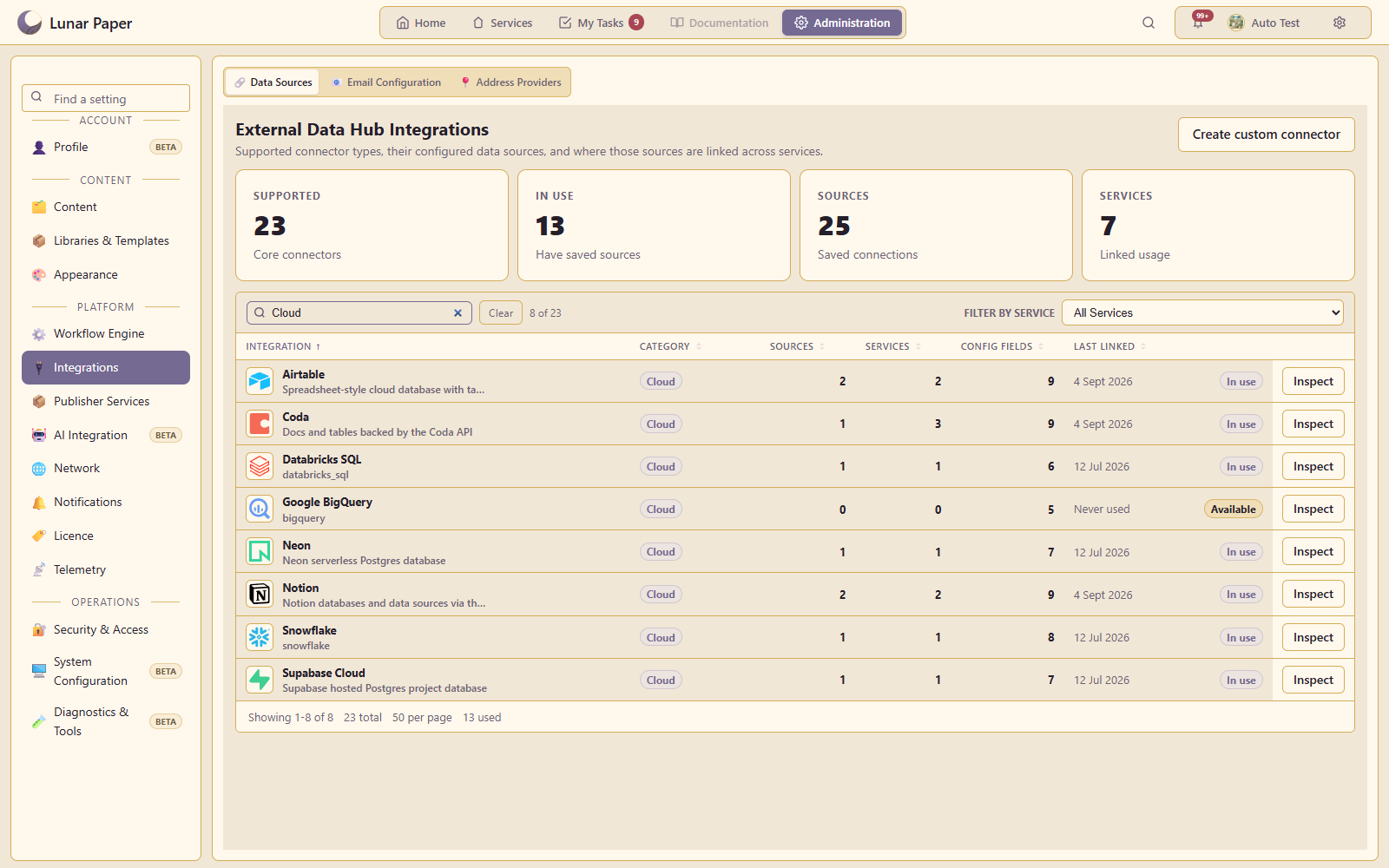
Data Hub includes 14 built-in connectors for cloud and on-premises databases. Transform data, create reports, and use it in automations and form fields.
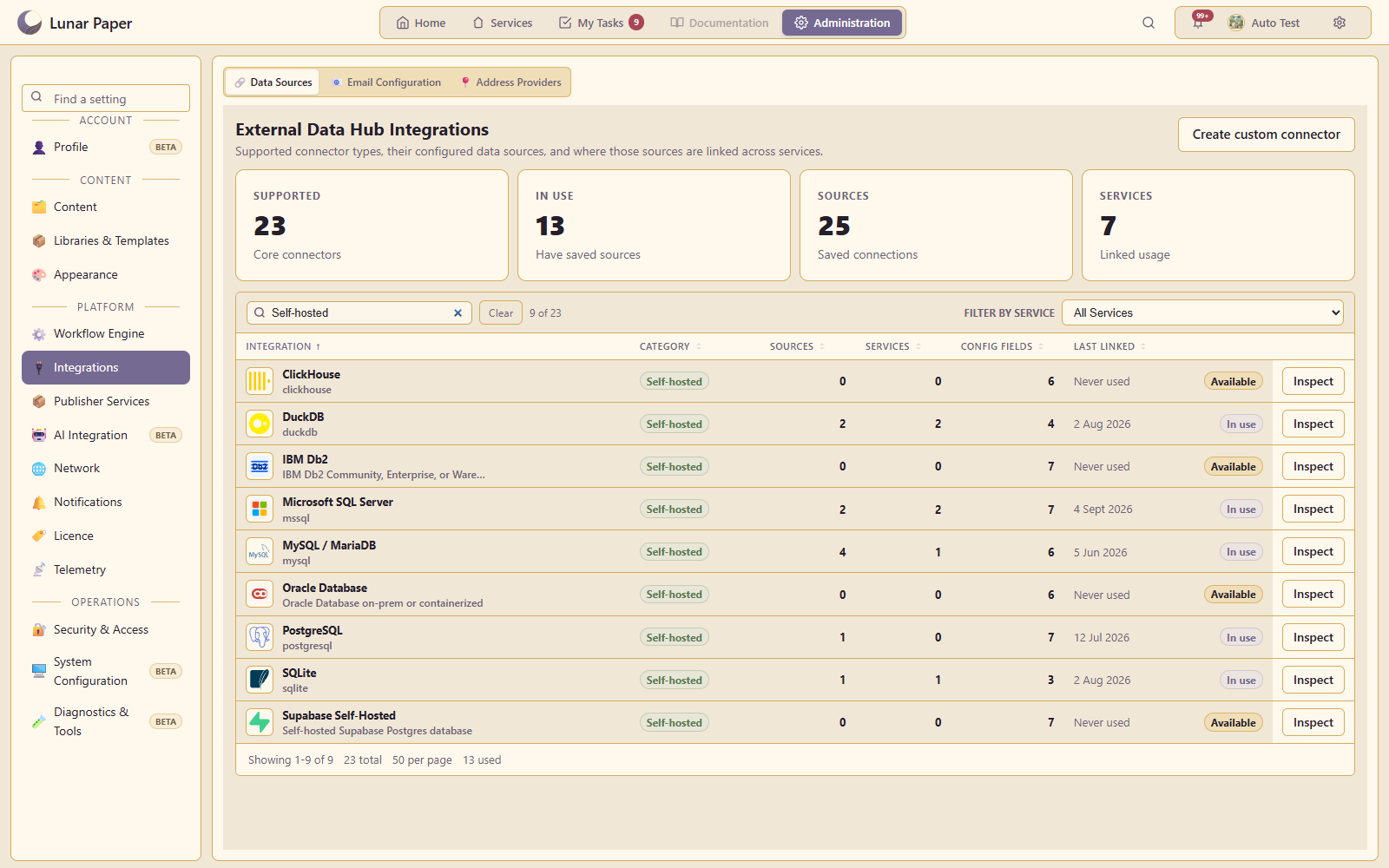
Data integrations: Self-hosted database connectors and service usage.
Database connectors. Self-hosted database connectors and service usage.Open full size ↗
Data integrations: Cloud databases, warehouses and application connections.
Cloud connectors. Cloud databases, warehouses and application connections.Open full size ↗
1 / 22 / 2

07 / Configuration & publishing

Configuration includes network access, proxies, publishing, monitoring and regional settings.

Proxies and network access

Outbound connections support HTTP and SOCKS5 proxies, direct connections and blocked routes. Administrators can allow selected private endpoints. Inbound reverse proxies are configured separately.

Publishing

You can run additional publishing instances and connect them to the platform to group content for different audiences or make selected content publicly accessible.
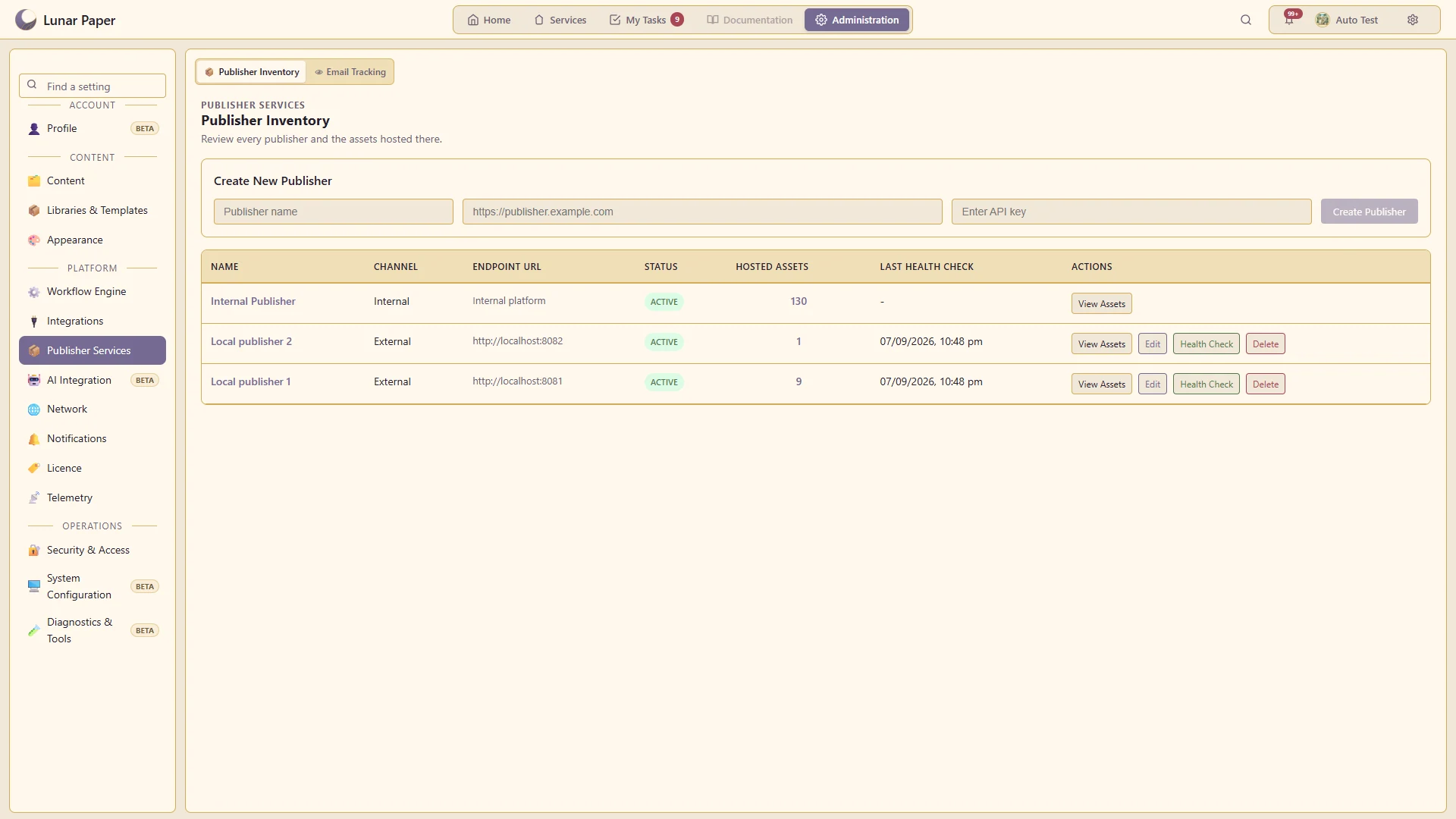
Internal and external publishing destinations.
Publishers. Internal and external publishing destinations.Open full size ↗

Platform settings

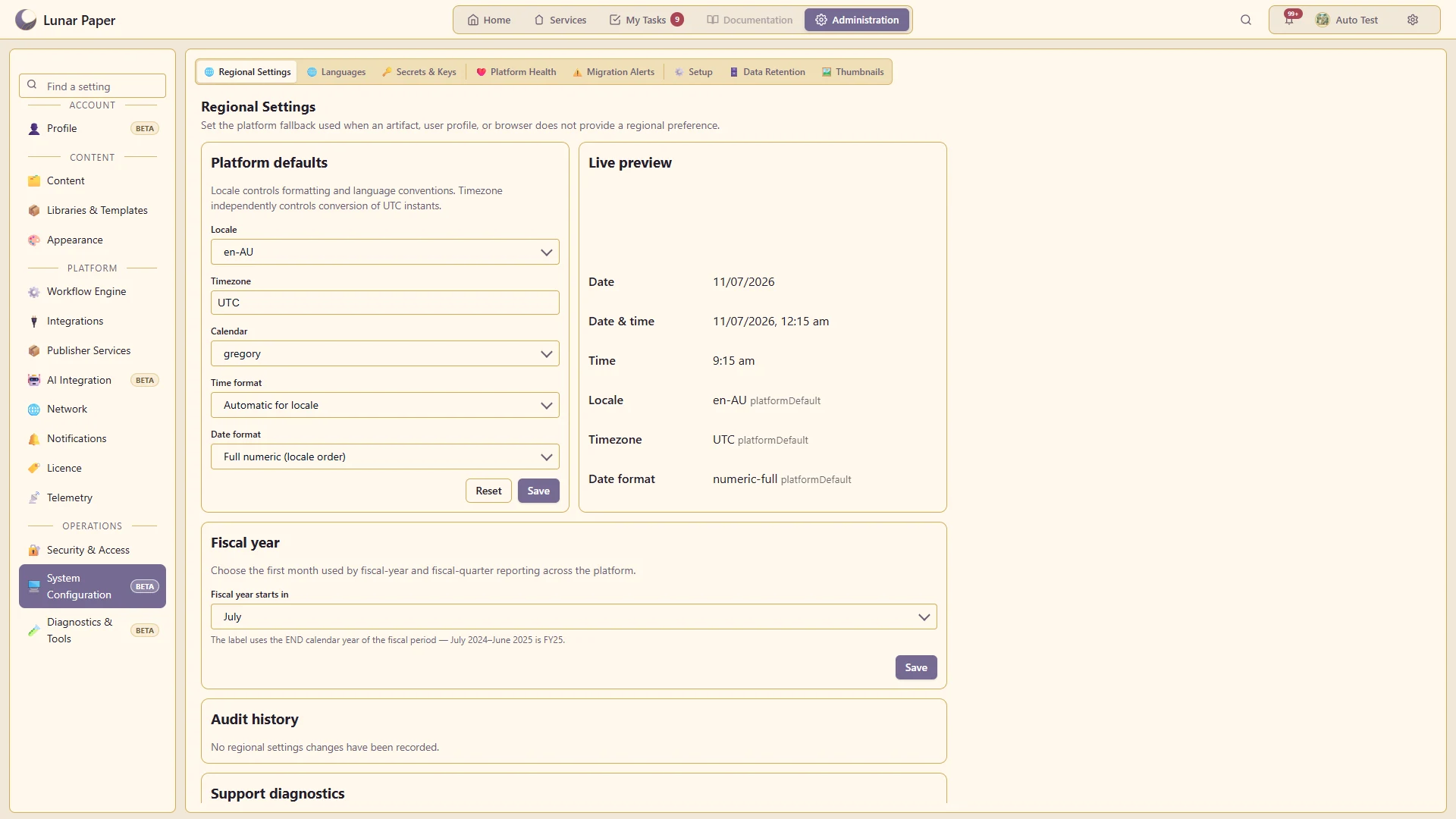
Platform settings include health monitoring, workflow operations, capacity assessments, retention and regional defaults. Users can set supported personal preferences for dates, times and languages.
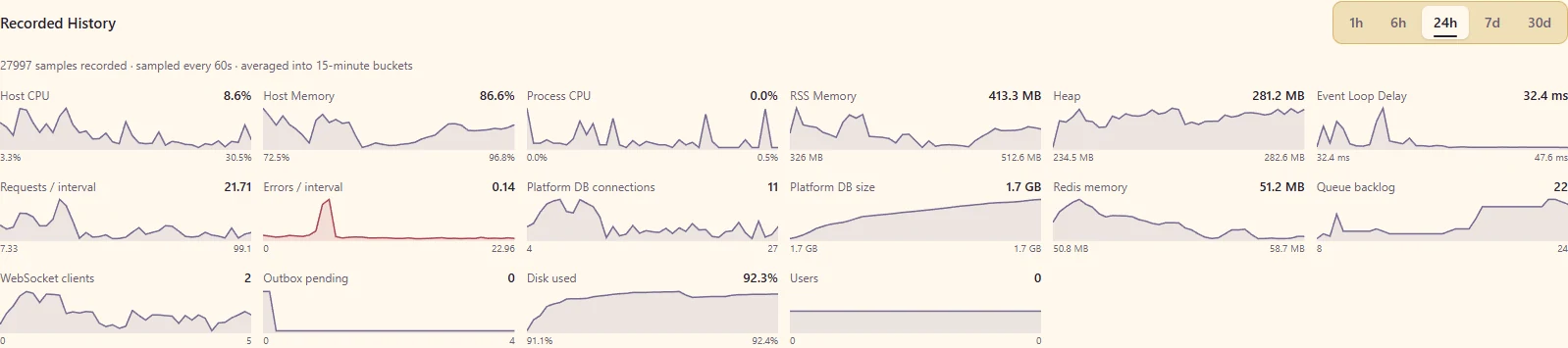
Platform settings: Operational measurements and history.
Platform health. Operational measurements and history.Open full size ↗
Platform settings: Default date and time settings.
Regional settings. Default date and time settings.Open full size ↗
1 / 22 / 2
Get started

Try it on your own machine

Run the platform with all features for free for three people.